Setting Up a Managed Office
Last updated August 2026
A managed office is one building, one reception, one kiosk and one fire register, shared by many resident businesses. Porter calls each of those businesses a company. Your reception sees everyone. Each company sees only its own visitors, deliveries and people. The fire roll-call crosses every company, because a fire does not respect a tenancy.
This guide takes you from an empty building to a working front desk. It should take about twenty minutes, most of which is one file upload.
Start with your tenancy schedule
You already keep a list of who is in the building. Export it from Excel as a CSV and upload it — that is the fastest route to a working system, because every company also gets a reception contact, so the kiosk has somebody to notify from the very first visitor.
- Go to Companies and choose Import tenancy schedule.
- Pick the building, then choose your CSV.
- Porter reads columns named Company, Floor or Suite, Contact, Email and Phone. Anything else is ignored, and it tells you which columns it used.
- You get a preview before anything is saved: how many companies will be added, how many updated, and every problem with the line number it is on.
- Confirm, and the building is set up.
Nothing is written until you confirm, and the import is safe to repeat. Companies are matched on name, so if you spot a mistake, correct the spreadsheet and upload it again — the second upload updates rather than duplicating.
Give each company its people
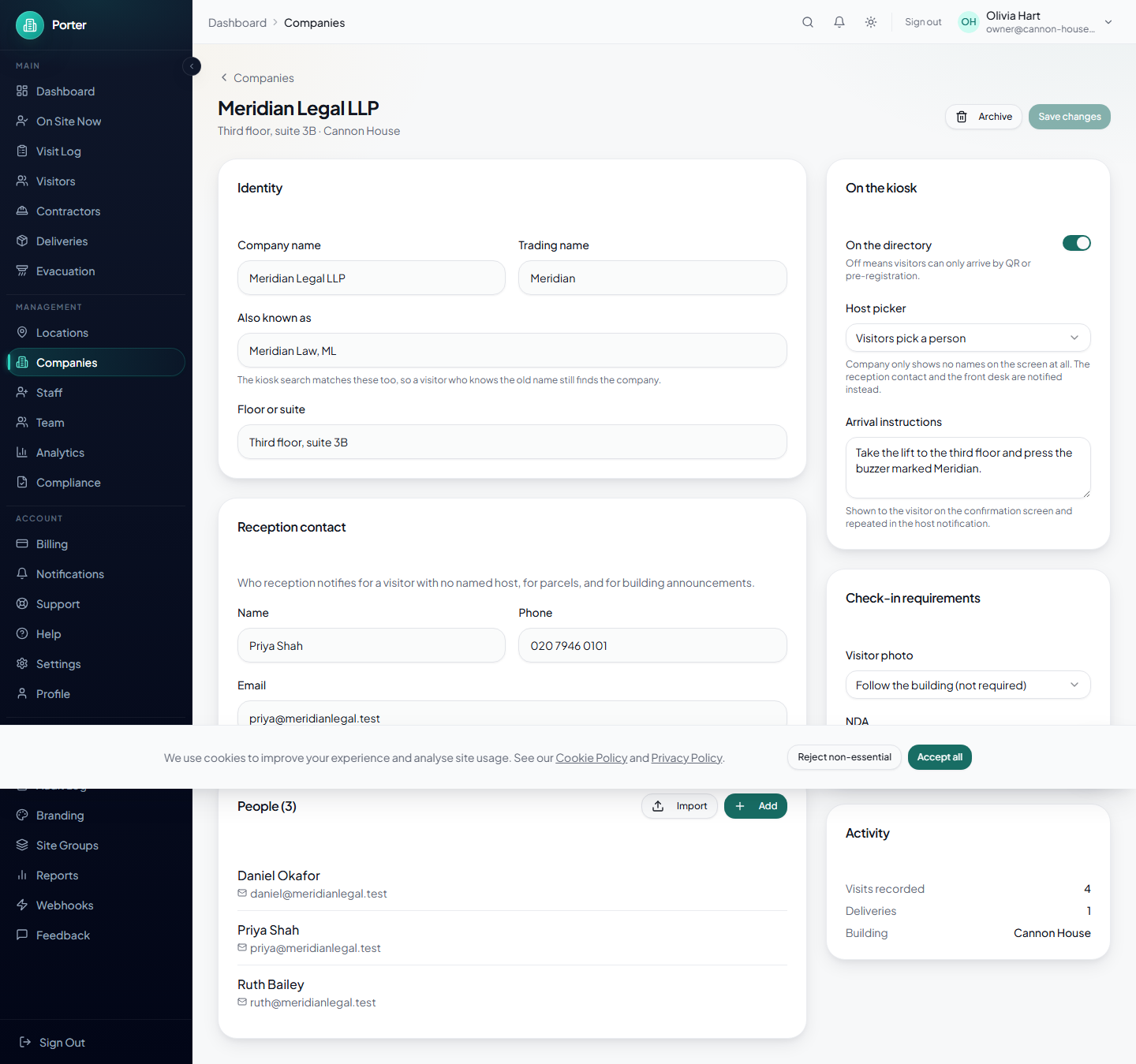
A visitor arriving for a company needs somebody to ask for. Open a company and add its people, or import a list the business emails you — a CSV with an Email column and either a Name column or First name and Last name.
A company with nobody added still works: the kiosk falls back to notifying its reception contact. The Companies list flags any company with no people and any with no contact, so you can see at a glance what is not finished.
How each company appears on the kiosk
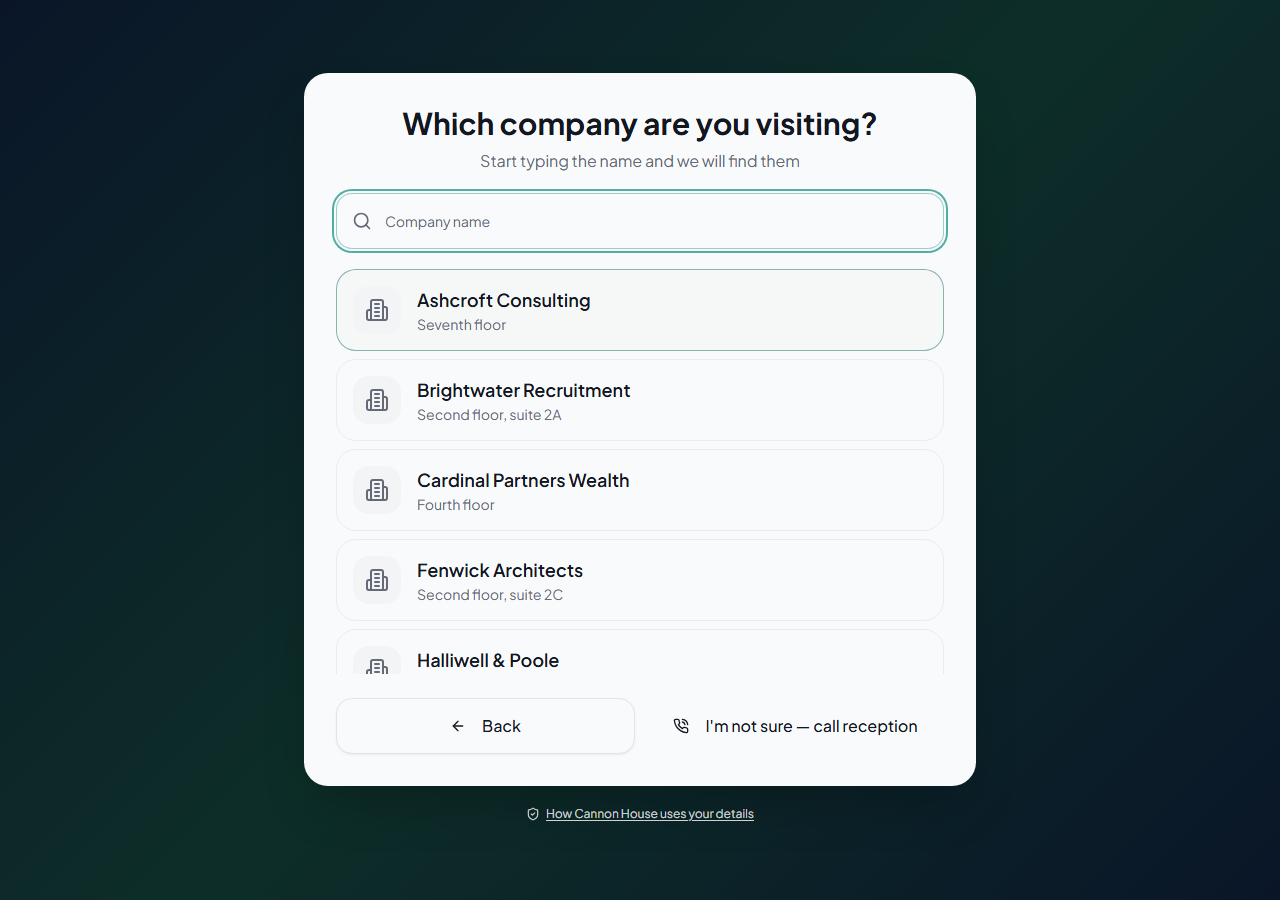
In a building, the kiosk asks which company before it asks anything else. The visitor types the name they were given on the phone — which is often not the name above the door — so each company can carry a trading name and any other names it goes by, and the search matches all of them.
Each company controls three things here:
- On the directory. Turn it off and the company is not listed at all; its visitors arrive by pre-registration or QR only.
- Host picker. "Visitors pick a person" is the normal case. Some businesses — a wealth manager, a clinic — will not have their staff names on a screen in a shared lobby. Set Company only and no names appear at all; reception and the company's contact are notified instead.
- Arrival instructions. Shown to the visitor on the confirmation screen and repeated in the notification, so they know how to actually get there.
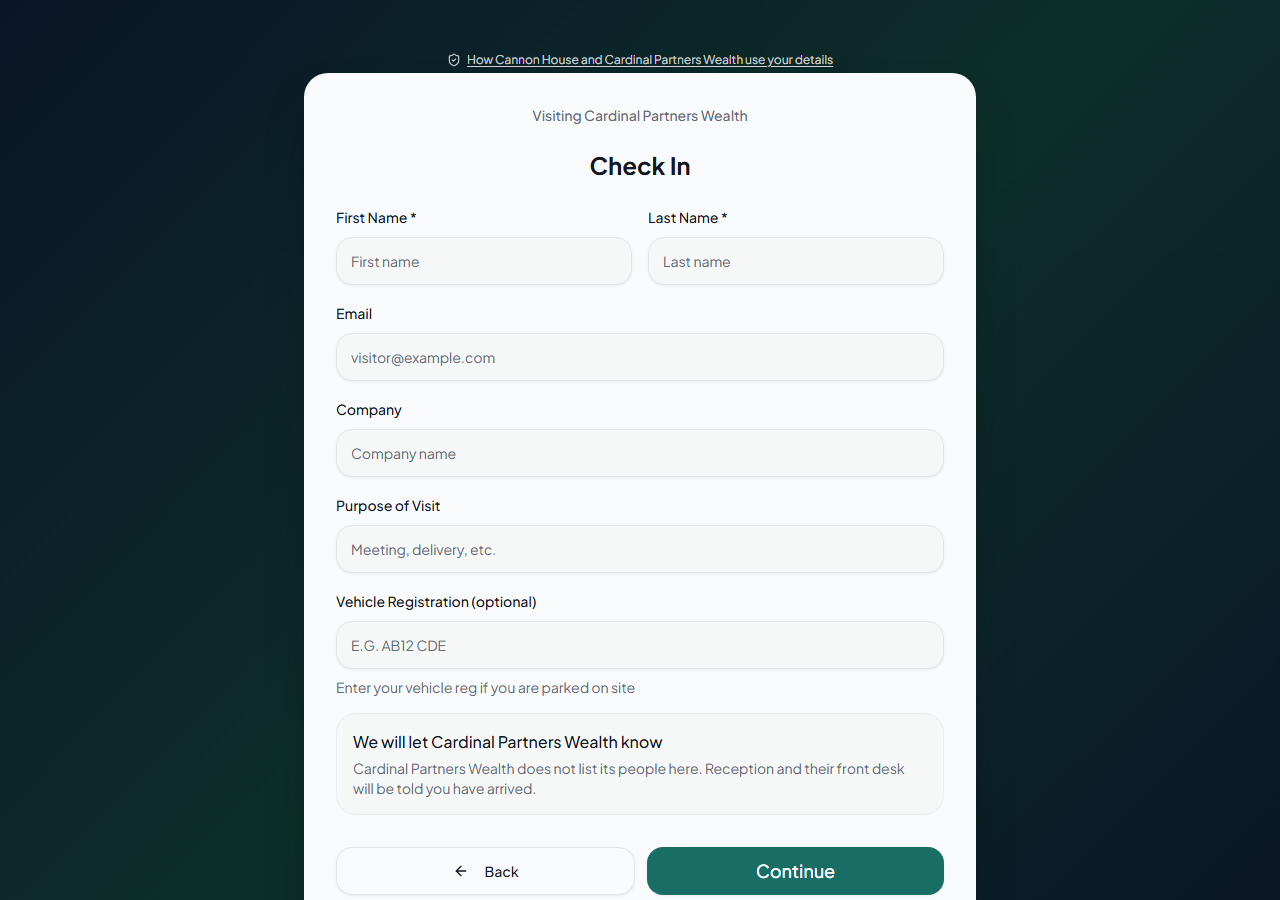
You can also override the photo and NDA requirements per company, or leave them following the building's own setting — which is what a company that has never expressed a preference should do.
Deciding who sees what
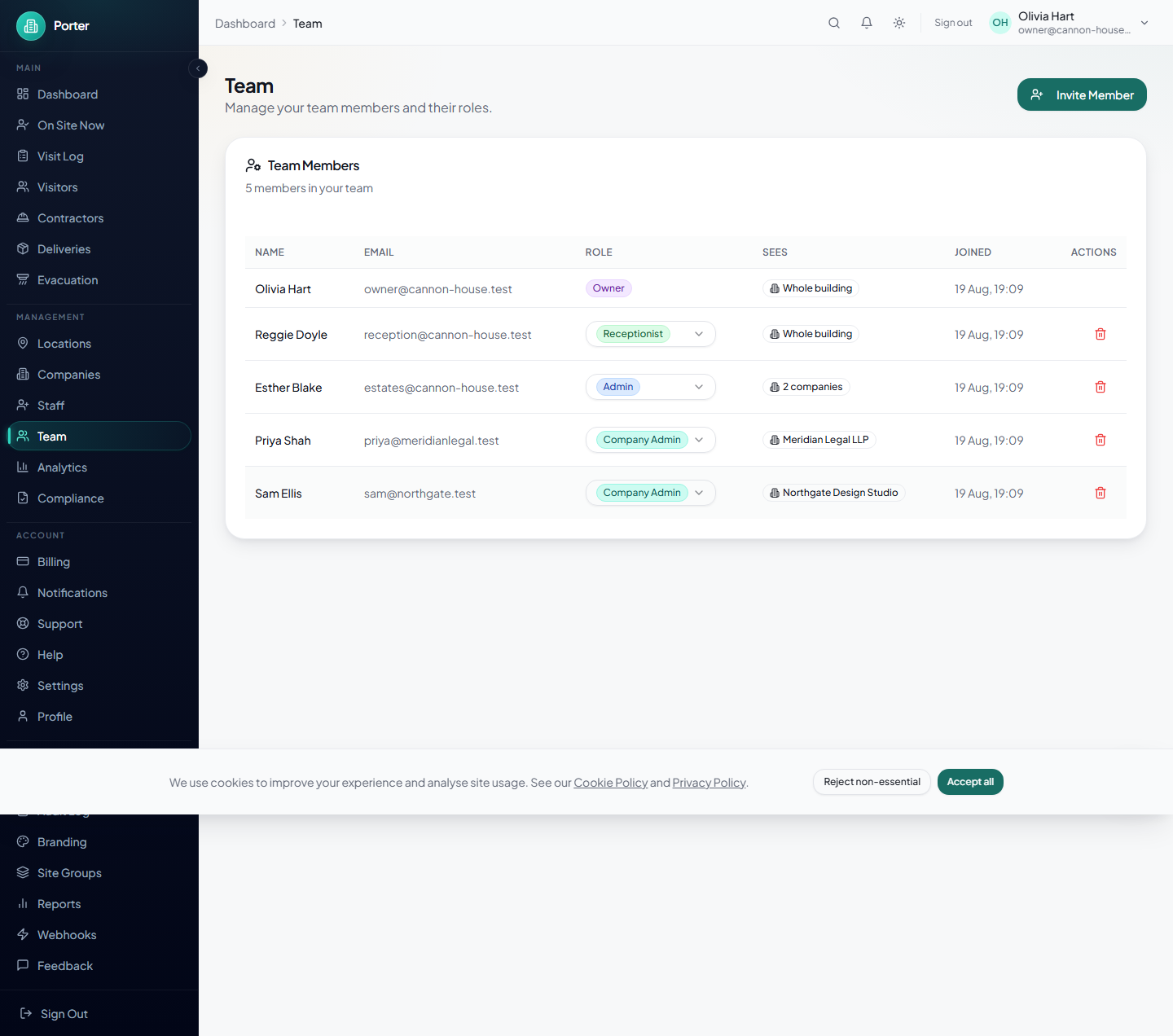
Your team screen has two columns that matter. Role is what someone can do. Sees is whose data they can do it to.
- The whole building — every company's visitors, deliveries and people. This is what reception and your own admins need.
- Selected companies — they see nothing outside the companies you tick. One company is the normal case for a resident business's own administrator.
Only a building owner or admin can hand out the whole building, or more than one company, and nobody can widen their own access. Changes take effect on that person's next request, not at their next sign-in.
Anyone who can see the whole building is asked for a second factor when they sign in. One password should not stand between an attacker and forty separate businesses' visitor records. People limited to a single company are not affected.
Inviting people
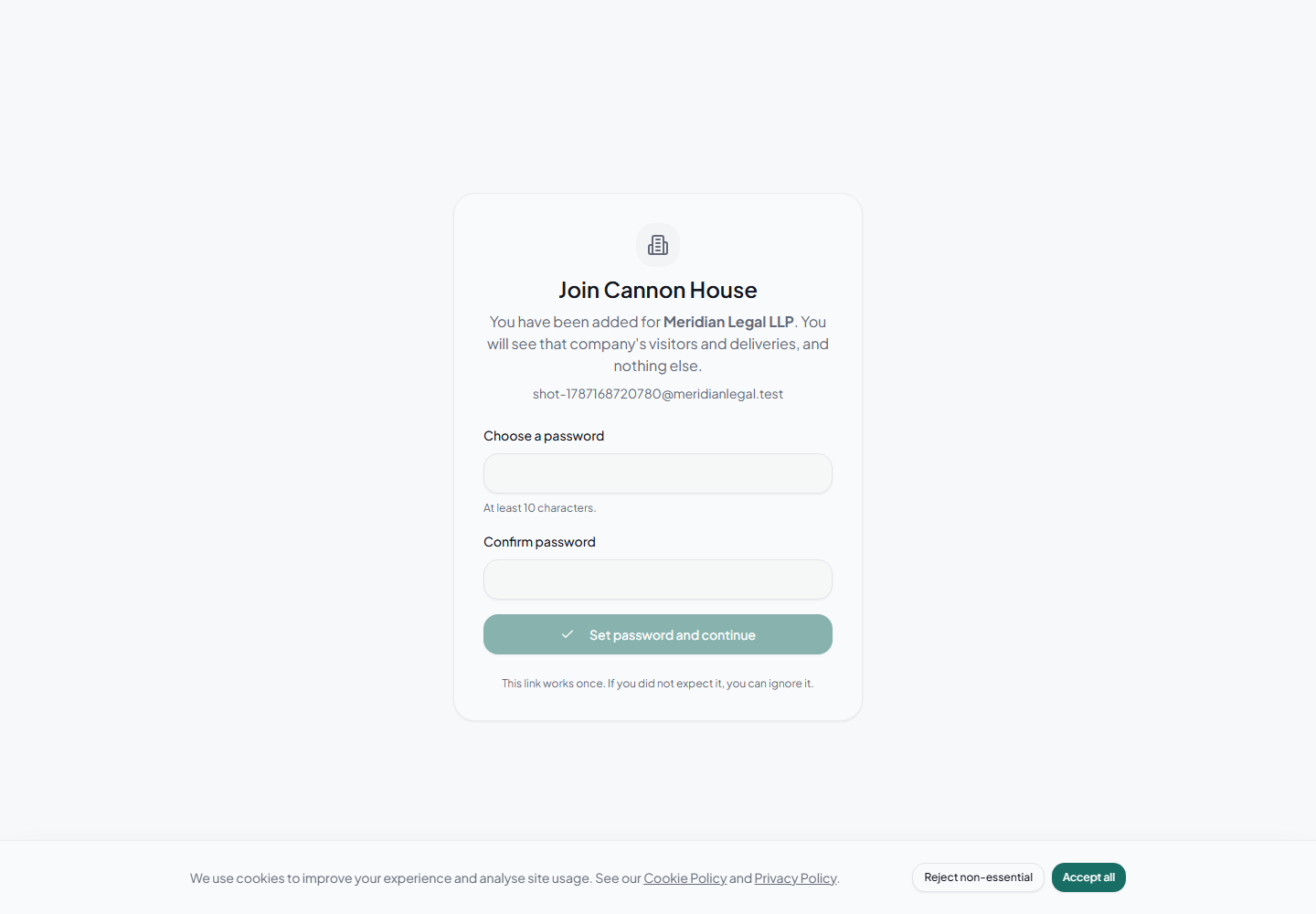
An invitation is a link that lets the person choose their own password. It works once and expires after seven days, and the account cannot be signed into until it is used. The page they land on names your building and their company, so they recognise it rather than reporting it as phishing.
Seeing what a company sees
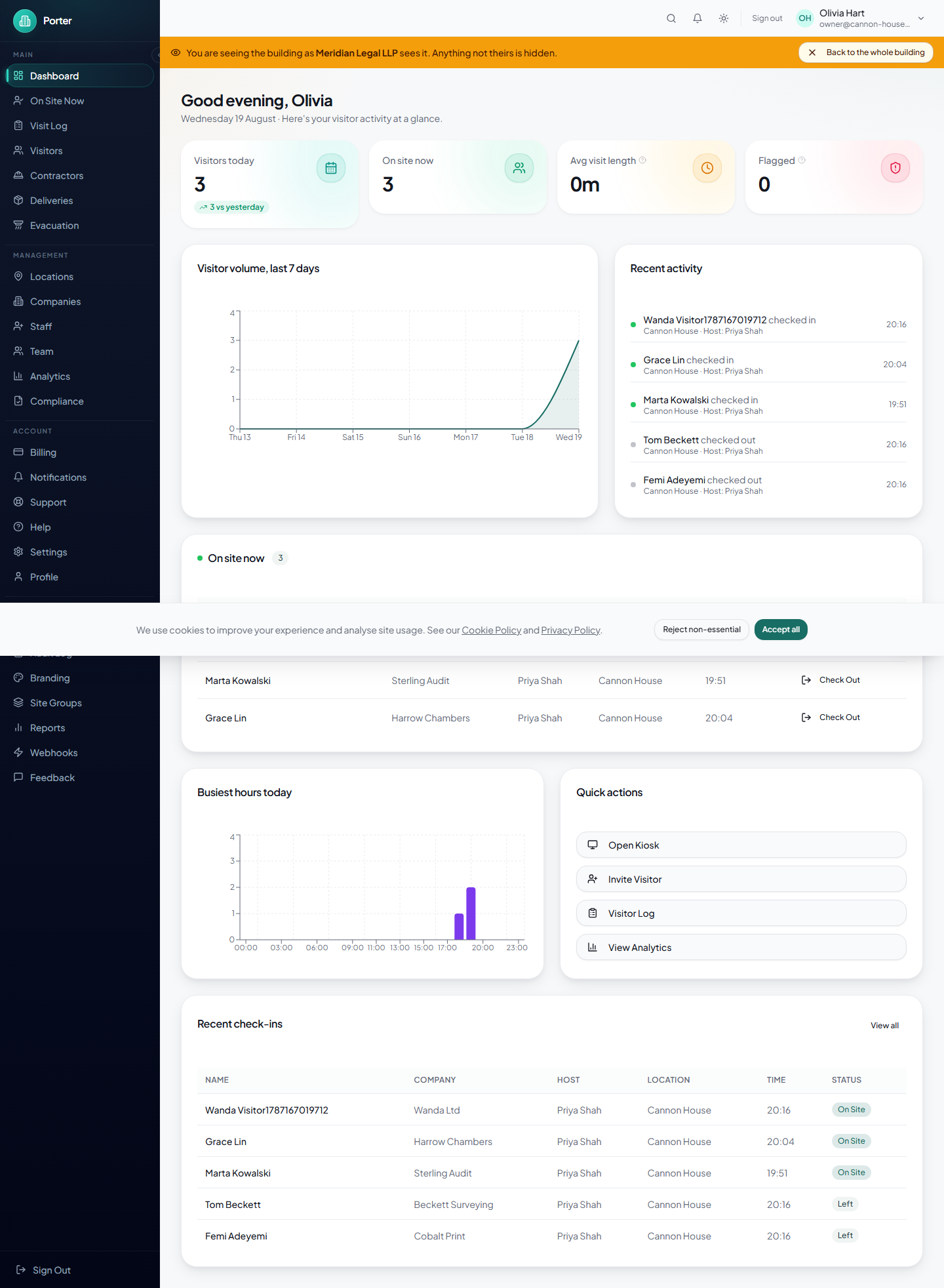
When a company rings up asking why something looks wrong, open its record and choose Preview as this company. Porter narrows your own view to that company until you leave, with a banner across the top so you cannot forget you are in it.
You stay signed in as yourself throughout — this is not signing in as somebody else — and it can only ever show you less than you can normally see. Entering and leaving are recorded in your audit log.
The data-protection side of running a building
A visitor signs in once, at one kiosk, and the record reaches both you and the company they came to see. That ordinarily makes the two of you joint controllers of the check-in, and it is the thing a resident company's adviser will ask you about first. Four screens exist for it.
Retention, under Settings. You set the building's period, and it is the one stated to visitors on the kiosk. A company that has to keep less than the building can be given a shorter period of its own, and the shorter figure is what actually runs. It can only ever be shorter: a company holding the same record for longer than the visitor was told would make your own notice untrue. Lowering the building's figure later lowers every company sitting above it automatically.
Holds, on Reports → Compliance. An incident, a claim or an investigation. Put a window and a reason on it, for one company or the whole building, and the retention sweep stops crossing it until you lift it. Lifting keeps the row, because the point of a hold is being able to say afterwards that you held these records from March to September and why. Without one, the clock deletes the evidence on schedule.
Privacy requests, on the same screen. A visitor may write to you or to the company they visited, and neither of you may pass them along. A request a company raises lands here with a calendar month to answer and the company named. Marking it done performs the building-wide erasure then and there and tells you how many records it touched; refusing needs a reason, because the reason is part of the answer and the company reads it back to the visitor. Any hold that blocks the erasure is shown before you decide.
The leaving pack, on a company's page. One file with that company's people, visitors, parcels and the record of who has been in those records. Produce it before you archive them rather than after: archiving ends their access, and the month of an office move is when they actually want it. The pack states in words what stays with you and under which period, which is the question they will ask.
Each connected company also has its own access log, under “Who has seen your records” in its settings: your team opening its company record, exporting its data or viewing its dashboard through the preview, named and timed. It can read that without asking you. Tell your reception team it exists, because it is better heard from you than discovered.
What it costs
The building licence is priced by how many companies are resident: up to 20, 21–50, 51–100, and a custom band above that. A band goes up only after your count has been above it for thirty days, and comes down at renewal, so adding a company for a month does not move your bill permanently.
A company you switch to Connected adds a per-company line for as long as it is on, and the dialog tells you the monthly difference before you confirm it. Resident companies are never billed by Porter: you are the customer, and whether you pass any of it on is between you and your tenants.
The current figures for every band, the per-company line and the optional extras are on the managed office pricing page. They are deliberately not repeated here, so this guide cannot go stale against them.