Getting Started with Porter
Last updated July 2026
Creating Your Account
To create your account, go to the Porter sign-up page and register with your work email address. You provide your full name, your work email, your organisation name, and a password, and you agree to the Terms of Service.
Passwords must be at least 10 characters. Porter also blocks very common and overly simple passwords, so use a mix of letters, numbers, and symbols.
After you submit the form, Porter sends a verification email. Click the link to confirm your address. Until you do, the dashboard keeps you on the verification screen. The link expires after 24 hours. If it does not arrive, check your spam folder, or request a fresh link from the verification page.
- Email verification is required before you can use the dashboard
- The first account you create is the organisation Owner and can invite the rest of your team
- Every new organisation starts on a 14-day free trial. No credit card is required to start
Setting Up Your Company
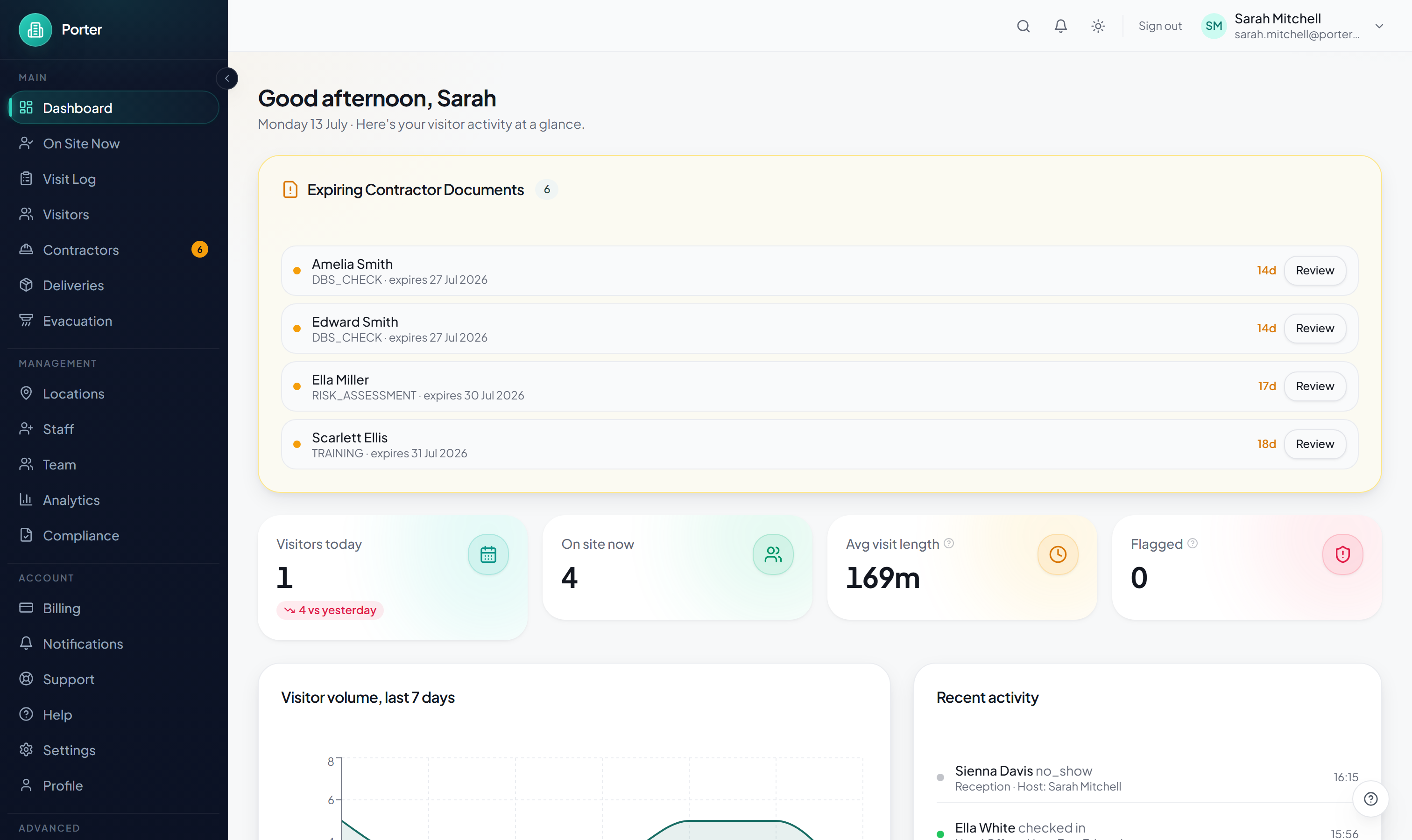
Your organisation name comes from the name you entered at sign-up. It appears on the kiosk welcome screen and throughout your dashboard. When you first sign in, Porter shows an in-app setup checklist that tracks the steps left to get you live.
To add your logo and brand colour, open Settings, then Branding. Upload a logo in PNG, JPG, or SVG format, up to 1MB. PNG or SVG at least 200x200 pixels works best. The logo is shown on the kiosk welcome screen, and the page includes a live preview of how it looks.
Set your primary brand colour with the colour picker or by typing a hex value such as #2563eb. This colour is applied to the buttons and accents on the kiosk. You can change your branding at any time from Settings, then Branding.
- Organisation name comes from sign-up and shows on the kiosk and dashboard
- Logo: PNG, JPG, or SVG up to 1MB (PNG or SVG, at least 200x200px recommended)
- Primary colour sets the kiosk buttons and accents, set via picker or hex code
- Branding lives under Settings, then Branding, and can be updated any time
Adding Your First Location
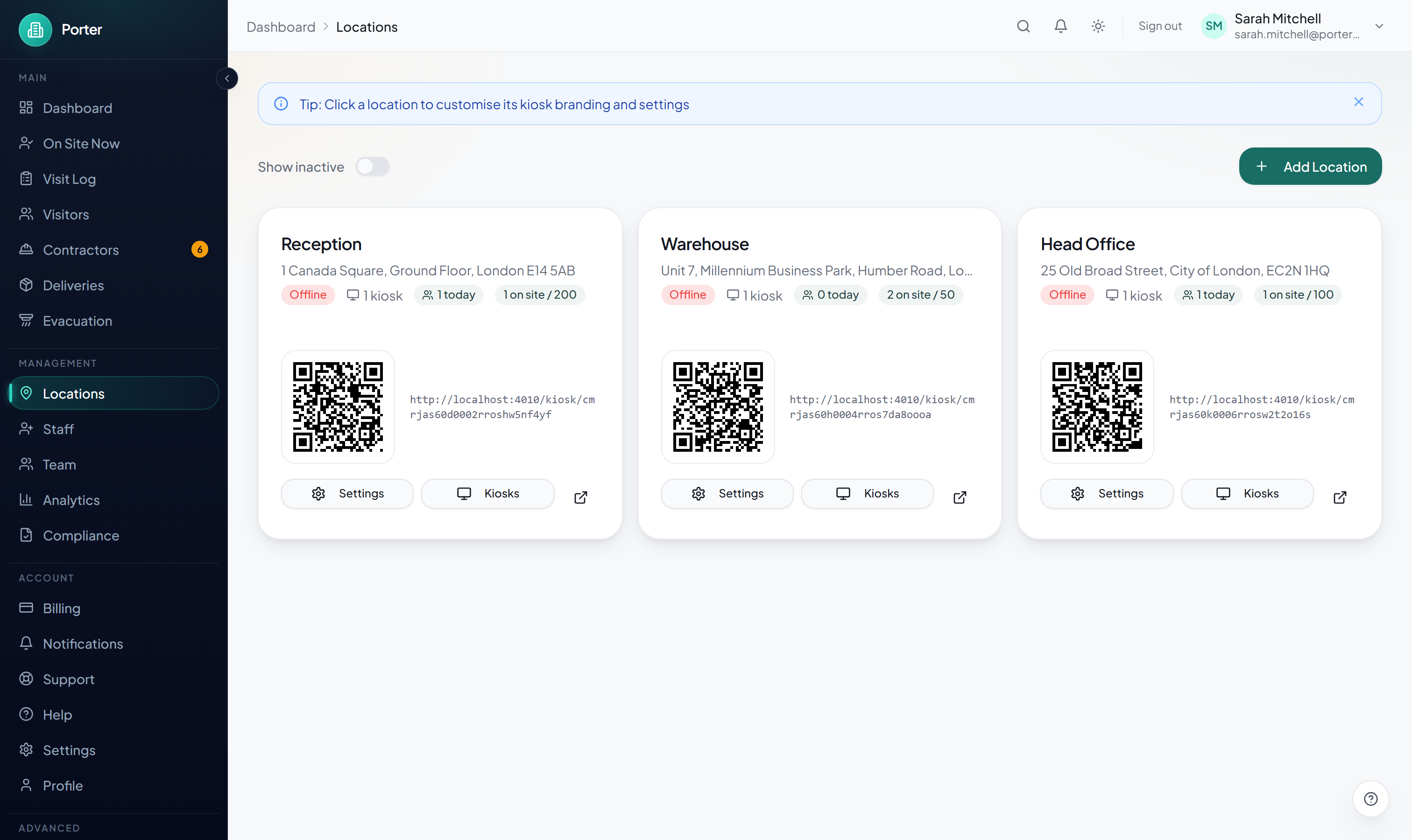
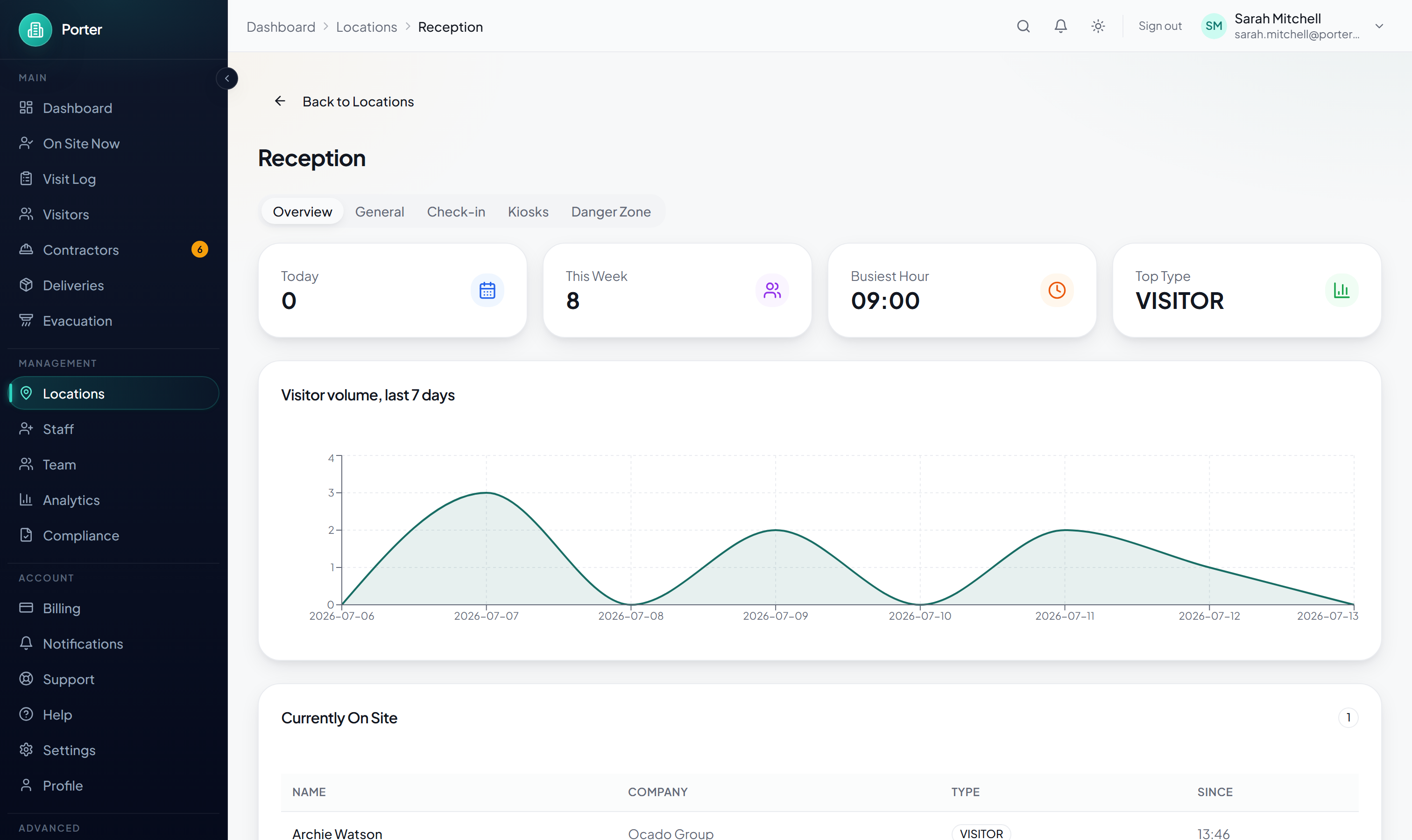
Porter supports multiple locations, so it suits organisations with several offices, buildings, or sites. Each location has its own kiosks, visitor log, and check-in settings. You need at least one location to get started.
- Open Locations in the sidebar and click Add Location.
- Enter a name your team will recognise, such as "Head Office", "Building A - Reception", or "Manchester Warehouse".
- Add the location's address (optional). It is included in the pre-registration invite email and calendar invite you send to expected visitors, helping them find your premises.
- Choose the location's timezone so check-in times and reports reflect local time.
- Click Create Location. Repeat for each site you operate.
The number of locations you can add depends on your plan. If you reach the limit, Porter prompts you to upgrade before you can add more.
- Each location has its own kiosk URL and paired kiosk devices
- The address is included in pre-registration invite emails and calendar invites
- Timezone is set per location for accurate time tracking
- The number of locations is governed by your plan
- All locations are managed from a single dashboard
Opening the Kiosk
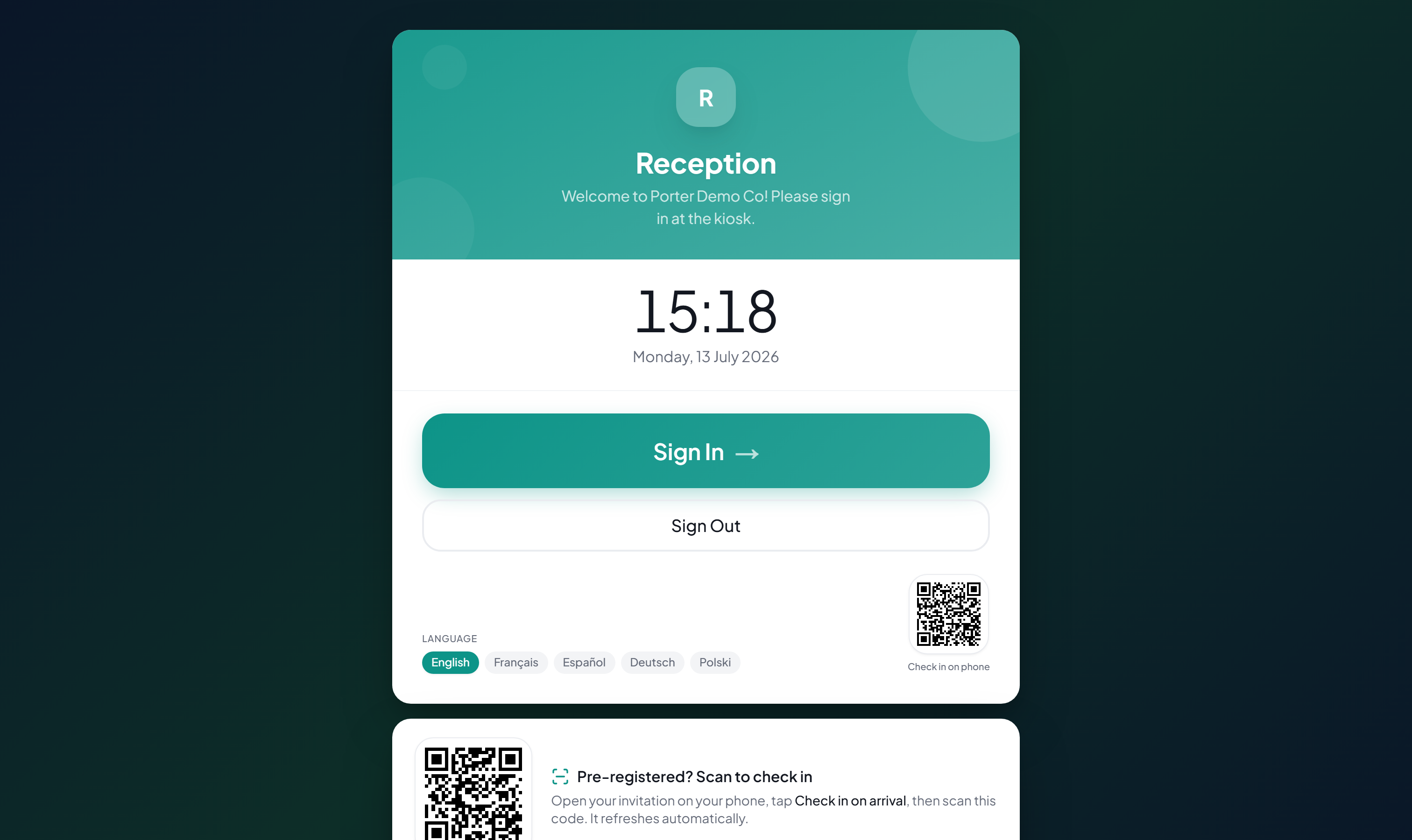
The kiosk is the visitor-facing screen where guests check in when they arrive. You set up one or more kiosk devices per location and pair each device once with a one-time token. It runs on any device with a modern web browser, such as an iPad, an Android tablet, or a desktop computer.
- Open Locations, select your location, and go to the Kiosks tab (or open the full kiosk manager).
- Click Add Kiosk and give it a name, such as "Main Reception". Porter generates a one-time authentication token.
- Click Launch to open the pairing dialog. It shows a pairing URL (in the format /kiosk/[locationId]?k=[token]), a QR code, and an "Open on this device" button.
- On the tablet you will use as the kiosk, open the pairing URL or scan the QR code once to pair it. Porter stores the token and strips it from the URL. To use the current computer instead, click "Open on this device".
- Lock the tablet to Porter using iPad Guided Access or Android screen pinning so visitors cannot navigate away from the check-in screen.
The token is shown only once. If you lose it, regenerate a new one from the same screen, which re-pairs the device and stops the old token working. A device that opens the kiosk URL without a valid token is asked to pair before it will load.
- Kiosk URL format: /kiosk/[locationId], paired with a one-time token
- Pair by opening the pairing URL, scanning the QR, or clicking "Open on this device"
- Regenerate the token at any time to re-pair a device
- Use Guided Access or screen pinning to lock the device to Porter
Checking In Your First Visitor
With a kiosk paired, walk through a check-in. On the welcome screen the visitor taps Sign In and follows a short flow. It usually takes under a minute.
- Tap Sign In on the welcome screen.
- Choose the visit type: Visitor, Contractor, Delivery, or Interview. Staff also appears if you have enabled staff sign-in for the location.
- Fill in the details form. First and last name are required. Email, company, purpose of visit, and vehicle registration are optional.
- Choose who they are visiting from the host list, or pick "not listed" for a walk-in. Selecting a host means that person is notified when the visitor arrives (by email, and by SMS, Slack, or Teams if you have set those up).
- If the location requires a photo, the visitor takes one with the device camera and can retake it.
- If the location requires an NDA or agreement, the visitor reads it and signs by drawing their signature on the screen.
- A confirmation screen thanks the visitor and the host is notified.
A returning visitor who enters a known email has their details pre-filled. Visitors can also scan the "Check in on phone" QR code on the welcome screen to complete check-in from their own phone. If you have turned on Host Approval for the location, the visitor waits on a screen until their host, or someone on the dashboard, approves entry.
- Required: visit type, first and last name, and a host (or a walk-in)
- Optional: email, company, purpose of visit, and vehicle registration
- Conditional: photo (if the location requires it) and signature (if an NDA is configured)
Next Steps
You now have a working visitor management system. A few things are worth setting up next to get the most out of Porter.
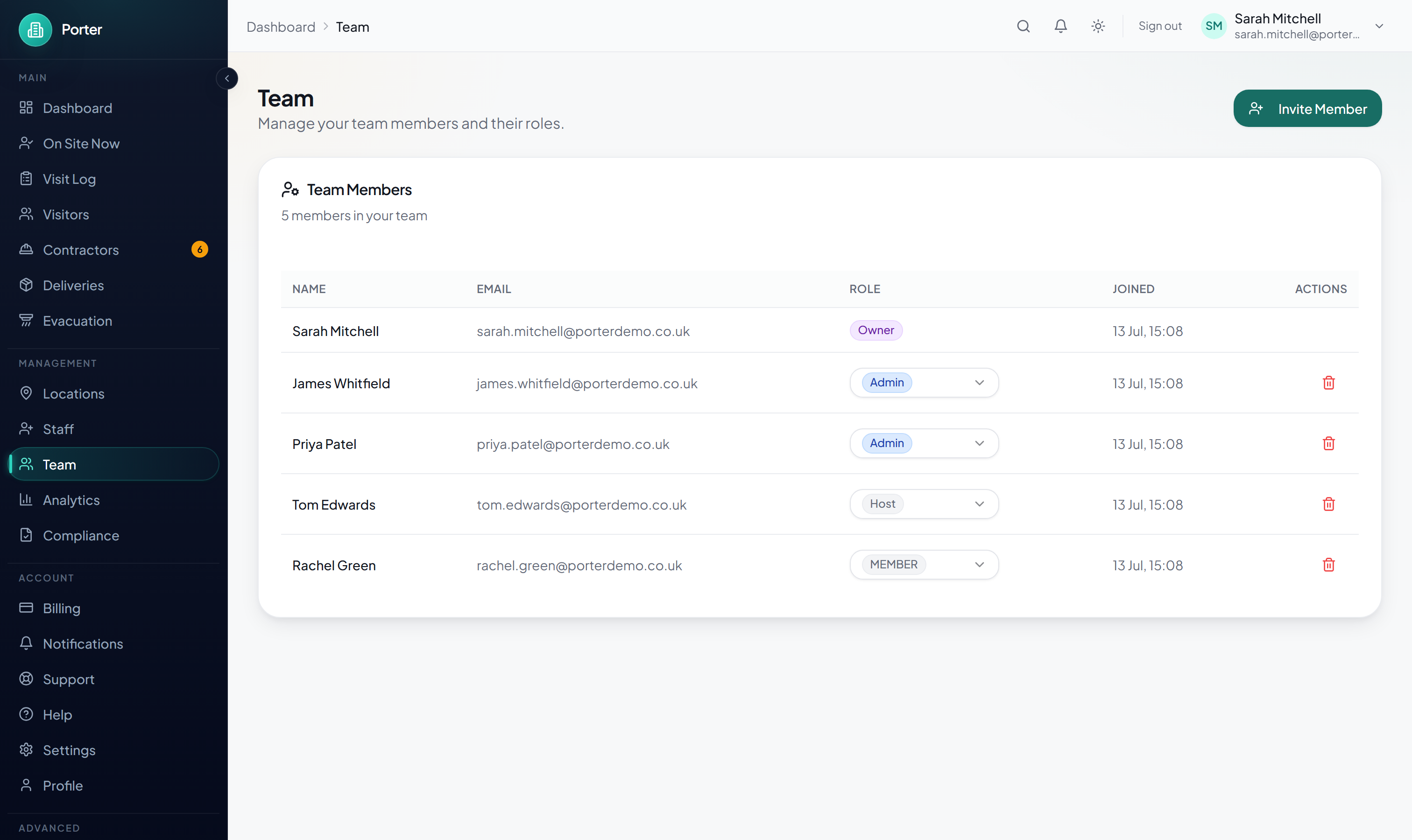
Invite your team. Open Team in the sidebar and invite colleagues by email, choosing a role for each: Admin (full access to settings and reports), Location Admin (manage assigned locations), Receptionist (manage visitors and deliveries), Host (notified when their visitors arrive), Security (on-site visitors, evacuations, and the blocklist), or Read-Only (view-only access to logs and analytics). Invited members receive an email with temporary login credentials.
Customise the check-in flow. Under a location's Check-in tab you can require a photo, require and edit an NDA, set an NDA re-sign cadence, require host approval, cap on-site capacity, and add custom fields. The welcome message lives under the General tab, and per-device options live under Kiosks.
Set up notifications. Email works out of the box. In Settings, then Notifications, you can also route arrival alerts to Slack or Microsoft Teams with a webhook, set quiet hours, and, where they are enabled, use SMS or WhatsApp via Twilio.
- Invite your team and assign roles from Team
- Customise each location's check-in flow under its Check-in tab
- Add Slack or Teams alerts and quiet hours in Settings, then Notifications
- Pre-register expected visitors to send a QR pass and speed up arrival
- Review the Analytics page for visitor insights