Troubleshooting & FAQ
Last updated August 2026
Having trouble with Porter? This guide walks through the most common issues and their fixes, then answers frequently asked questions. If you are still stuck, jump to Contact support.
Kiosk Won't Connect
If your kiosk is not loading or shows a connection error, work through these steps in order.
- Check the internet connection - confirm the kiosk device is connected to Wi-Fi or Ethernet, and that the connection reaches the internet.
- Clear the browser cache - stale cached data can stop the page loading. A hard refresh or clearing the cache usually resolves it.
- Try a private window - open the kiosk in an incognito/private window to rule out a browser extension conflict.
- Confirm the location is active - a deactivated location rejects new check-ins. Open Locations > [your location] and make sure it is active.
- Re-launch the kiosk - go to Locations > [your location] > Kiosks and launch the device again to mint a fresh pairing QR and URL, then re-scan it on the tablet.
If none of these help, restart the kiosk device. Should the problem persist, raise a ticket with your location name and the exact error message shown on the kiosk.
Notifications Not Sending
If hosts or admins are not receiving alerts when visitors arrive, check the channel that should be delivering them. All notification channels are configured under Settings > Notifications.
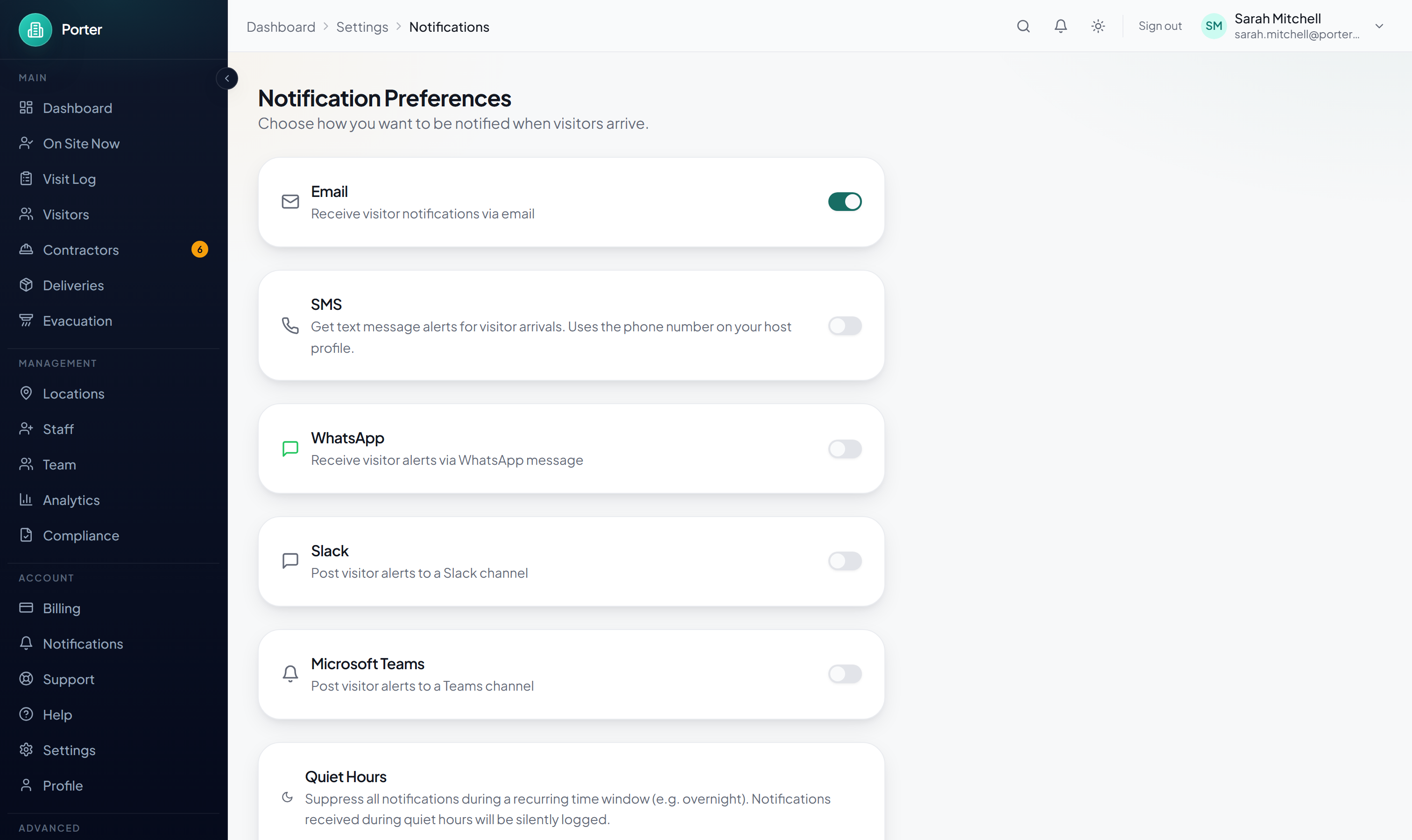
- Make sure Email is switched on under Settings > Notifications.
- Ask the recipient to check their spam or junk folder for messages from Porter.
- Add noreply@portervisitors.com to the recipient's safe-sender list.
- Check Quiet Hours on the same page - if the current time falls inside the quiet-hours window, alerts are suppressed until it ends.
Visitor arrivals also appear in the in-app notifications centre (the bell in the sidebar), so hosts can still see them if email is delayed.
SMS
- SMS alerts are only available when they have been enabled for your account. If you do not see an SMS option under Settings > Notifications, it is not switched on - contact support to enable it.
- When enabled, texts go to the phone number on the host's profile, so make sure that number is set and in full international format.
Slack & Microsoft Teams
- Under Settings > Notifications, switch on Slack (or Microsoft Teams) and paste an Incoming Webhook URL. The URL must start with
https://. - Confirm the webhook still exists in your Slack workspace or Teams channel - removing the app or connector stops delivery.
- Make sure the target channel still exists and has not been archived.
Camera Not Working on Kiosk
The visitor photo step uses the device's front-facing camera. If the camera does not activate, check the following.
- Browser camera permission - the browser must be allowed to use the camera. Look for a camera icon in the address bar and grant access.
- Site permissions - in browser settings, make sure the kiosk URL is allowed camera access rather than blocked.
- HTTPS required - browsers only expose the camera on secure pages. Confirm the kiosk URL starts with
https://. - Try a different browser - Chrome and Safari have the strongest camera support for web apps.
- Rule out hardware - test the camera in another app to confirm the device camera works.
If you do not want to collect photos at this location, turn off Photo Required under Locations > [your location] > Check-in.
If the kiosk loses its connection
A kiosk that has already been used keeps working through a short drop: the screens it has loaded stay on screen, so a visitor mid-check-in does not see a browser error. A check-in submitted while the connection is down is refused, and the visitor is told to see the reception desk.
Why it refuses rather than storing them
Porter used to hold check-ins on the tablet during an outage and show the visitor the “you are checked in” screen. That behaviour was removed, deliberately, because of what it does in the one situation that matters: the visitor is inside the building, believes they have signed in, and is absent from the fire roll-call, with nobody at the desk or the assembly point able to know.
A queue is only safe alongside a way to reconcile it, and on a tablet that may not come back online there is no version of that ending with a complete roll-call. So the failure is loud instead: reception sees the problem immediately and falls back to the paper register, which is what buildings already do when a system is down.
What to do during an outage
- Sign visitors in on paper at the desk, and note the time.
- Keep that sheet at the desk until the kiosk is back. During an evacuation it is part of the roll-call, and the digital list is not complete without it.
- Once the connection returns, check anyone still on site in through the reception console so the live list and the roll-call are right.
- Check-ins attempted during the outage were never recorded, so there is nothing to recover and nothing to de-duplicate.
Pre-registration, QR passes and host notifications all need the connection too, and resume on their own once it returns.
Contact support
Porter support is handled through the in-app help assistant and support tickets, not a phone line. Every request becomes a written thread, so you get a record of the conversation and can include screenshots and error details.
- Ask the help assistant. Open the chat bubble at the bottom-right of any dashboard page and type your question. It searches the docs and answers instantly.
- Talk to a person. In the assistant, tap “Talk to our team”. Your message opens a support ticket, and replies appear in the widget and by email.
- Raise a detailed ticket. For anything involved, go to Support > Create Support Ticket. Add a subject, pick a category (General, Billing, Technical, Feature Request or Bug Report) and a priority (Low, Normal, High or Urgent), then describe the issue.
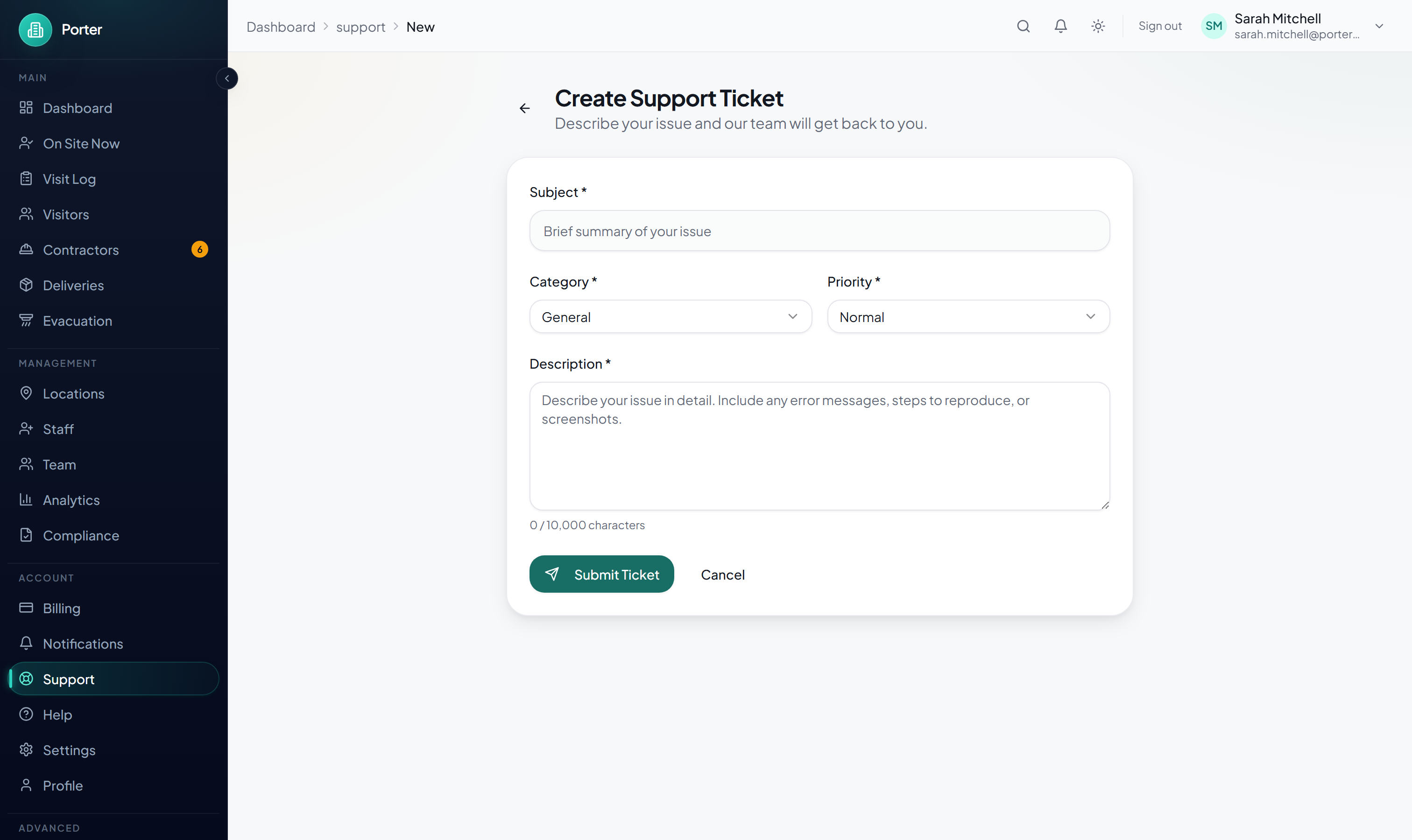
Include any error messages, the affected location, and the steps to reproduce so we can help faster. We typically respond within one business day; Enterprise plans include priority support. You can also email support@portervisitors.com.
Frequently asked questions
Select any question to reveal the answer.