Analytics & Reports

Last updated March 2026

Dashboard Analytics Overview

The Porter analytics dashboard provides a comprehensive overview of visitor activity across your organisation. Accessible from the main navigation under "Analytics", the dashboard surfaces key metrics and trends that help you understand visitor patterns, optimise staffing at reception, and demonstrate the value of your visitor management system.

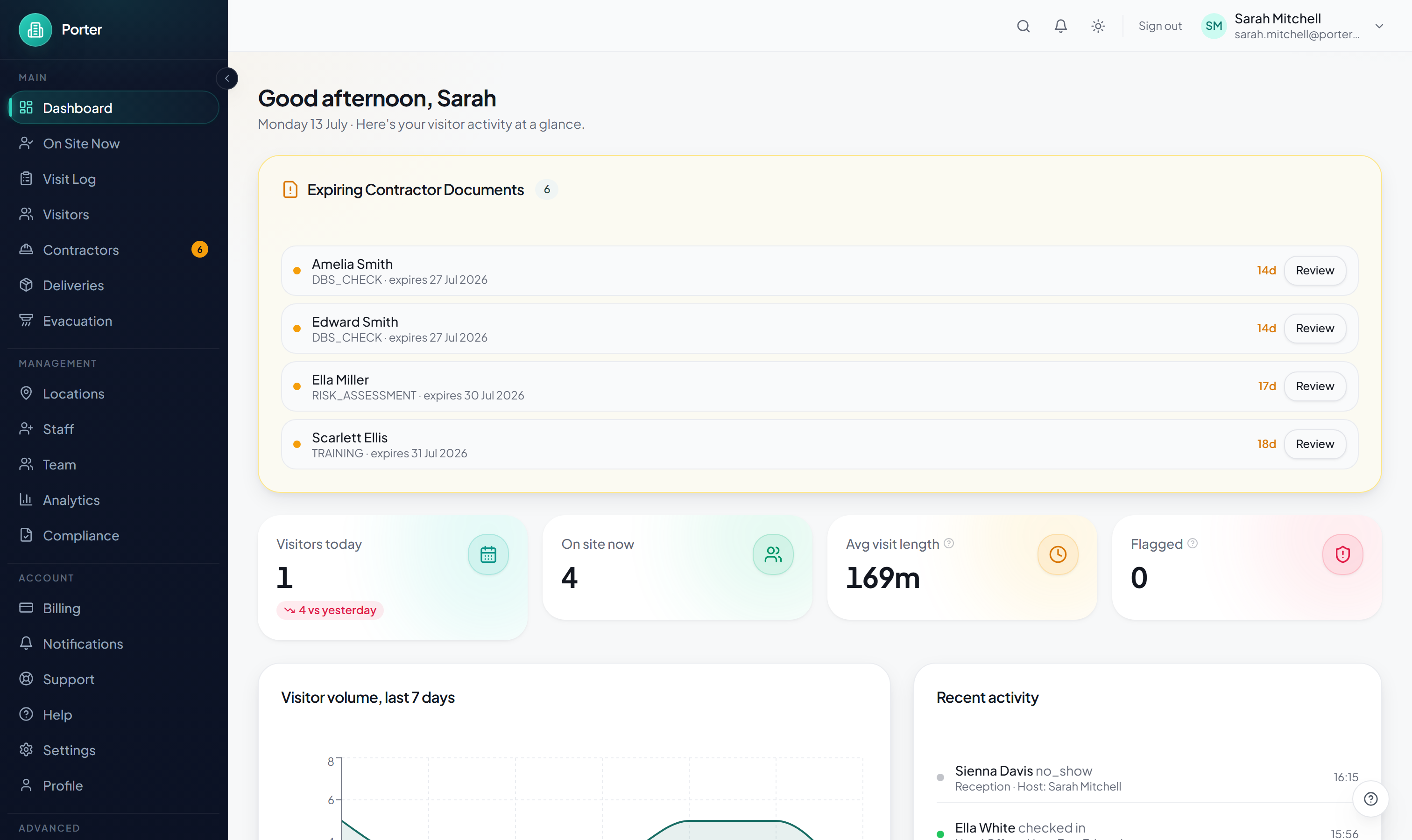
The top of the dashboard displays four key metric cards that update in real time. "Visitors Today" shows the total number of visitors who have checked in at all locations during the current day. "On Site Now" displays how many visitors are currently checked in and have not yet checked out. "Average Duration" calculates the mean time visitors spend on site based on check-in and check-out timestamps. "Busiest Day" identifies which day of the week sees the most visitor traffic over the selected period.

Below the metric cards, the dashboard presents a series of interactive charts and graphs that visualise visitor data over time. Each chart can be hovered over for detailed tooltips, clicked to drill down into specific data points, and exported individually as PNG images for use in presentations or reports.

The analytics dashboard respects your role-based access permissions. Admin users see data for all locations, while location managers see only their assigned locations. Hosts see a simplified view showing only their own visitor metrics. This ensures that sensitive visitor data is only accessible to authorised personnel.

  • Visitors Today — total check-ins across all locations for the current day
  • On Site Now — currently checked-in visitors who have not checked out
  • Average Duration — mean time visitors spend on site
  • Busiest Day — day of the week with highest visitor volume
  • Role-based access controls data visibility
Analytics dashboard showing four key metric cards and interactive chart panels below

Available Charts

Porter provides a rich set of chart types to visualise your visitor data from multiple perspectives. Each chart is designed to answer a specific question about your visitor patterns, and together they provide a complete picture of how your premises are used by external guests.

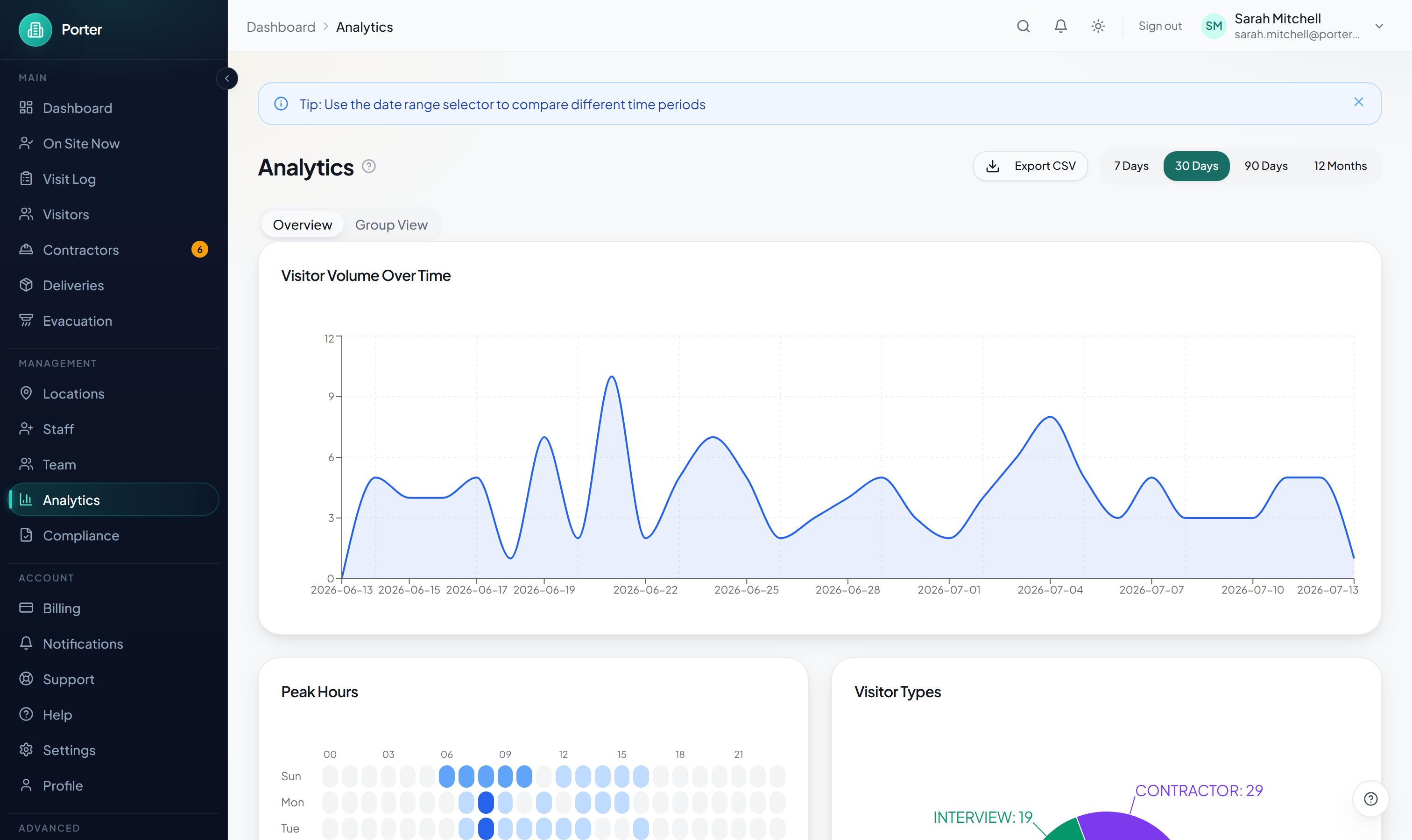
The Visitor Volume line chart shows the total number of visitors per day, week, or month over the selected time period. This is your primary trend chart, helping you spot patterns such as seasonal fluctuations, the impact of events, or gradual growth in visitor numbers. Multiple locations can be overlaid on the same chart for comparison.

The Peak Hours bar chart breaks down visitor arrivals by hour of the day. Each bar represents the average number of check-ins during that hour across the selected period. This chart is invaluable for reception staffing decisions — if 70% of visitors arrive between 9am and 11am, you know to have full reception coverage during those hours.

The Visitor Types pie chart shows the distribution of visitors by type (regular visitors, contractors, deliveries, interviews, and any custom types). This helps you understand the composition of your visitor traffic. Clicking on a segment filters the other charts to show only that visitor type.

The Top Hosts horizontal bar chart ranks hosts by the number of visitors they receive. This identifies your most active hosts and can inform decisions about dedicated meeting spaces, visitor parking allocation, or host training priorities. The chart shows the top 10 hosts by default, with an option to expand to show all hosts.

The Location Comparison grouped bar chart allows you to compare visitor volumes across multiple locations side by side. Each group represents a time period (day, week, or month) with individual bars for each location. This is essential for multi-site organisations to understand relative activity levels and allocate resources accordingly.

  • Visitor Volume (line chart) — trend over days, weeks, or months
  • Peak Hours (bar chart) — arrivals by hour of day
  • Visitor Types (pie chart) — distribution by category
  • Top Hosts (horizontal bar) — ranked by visitor count
  • Location Comparison (grouped bar) — side-by-side site comparison
Analytics charts panel showing visitor volume line chart, peak hours bar chart, visitor types pie chart, top hosts, and location comparison

Filtering Data

The analytics dashboard includes powerful filtering controls that allow you to slice and dice your visitor data to answer specific questions. Filters are applied globally, meaning all metric cards and charts on the dashboard update simultaneously when you change a filter setting.

The date range selector is the primary filter control, located at the top right of the dashboard. Quick presets are available for common time periods: last 7 days, last 30 days, last 90 days, and last 12 months. For specific date ranges, click "Custom" to open a calendar picker where you can select exact start and end dates.

The location filter lets you focus on a specific site or compare selected sites. By default, all locations are included. Click the location dropdown to select one or multiple locations. When a single location is selected, the location comparison chart is hidden since there is nothing to compare. When multiple locations are selected, the comparison chart highlights those specific sites.

The visitor type filter allows you to analyse specific categories of visitors independently. Filter to see only contractor data, only interview candidates, or any combination of types. This is especially useful when preparing reports for specific departments — for example, HR might want to see only interview visitor data while the facilities team focuses on contractor and delivery metrics.

Filter selections are preserved in the URL, which means you can bookmark specific filtered views or share them with colleagues via link. This makes it easy to create saved views for recurring reporting needs without having to reconfigure filters each time you visit the dashboard.

  • Date range: 7d, 30d, 90d, 12m presets or custom date picker
  • Location: single or multi-select from all available locations
  • Visitor type: filter by one or more visitor categories
  • Filters apply globally to all charts and metrics
  • Filter state is preserved in the URL for bookmarking and sharing
Filter controls showing date range selector with presets, location dropdown, and visitor type multi-select

Creating Scheduled Reports

Scheduled reports deliver visitor analytics directly to stakeholders' inboxes on a regular basis without requiring them to log into the Porter dashboard. This is ideal for management reporting, compliance documentation, and keeping security teams informed about visitor patterns.

To create a scheduled report, navigate to Analytics > Scheduled Reports and click "Create Report". Start by giving the report a descriptive name such as "Weekly Visitor Summary" or "Monthly Compliance Report". Then choose the report frequency: daily, weekly (select the day of the week), or monthly (select the day of the month).

Add one or more recipients by entering their email addresses. Recipients do not need to have Porter accounts — you can send reports to anyone in your organisation or even to external stakeholders such as clients or building management. Each recipient receives the report as an email attachment on the scheduled day.

Select which metrics and charts to include in the report. You can choose from all available analytics: visitor counts, average duration, peak hours, visitor type breakdown, top hosts, and location comparison. Include only the metrics relevant to your audience to keep the report focused and easy to digest.

Choose the report format: PDF for a visually formatted report with charts and branding, or CSV for raw data that can be imported into spreadsheets and other analysis tools. PDF reports include your company logo and are formatted for professional presentation. CSV exports contain all underlying data points for each selected metric.

  • Schedule: daily, weekly, or monthly delivery
  • Recipients: any email address (Porter account not required)
  • Select metrics: visitor counts, duration, peak hours, types, hosts, locations
  • Format: PDF (formatted with charts) or CSV (raw data)
  • Reports include company branding in PDF format
Scheduled report creation form showing name, frequency, recipients, metric selection, and format options

Exporting Data

In addition to scheduled reports, Porter provides on-demand export capabilities for situations where you need to pull data immediately. Whether you are responding to an audit request, preparing for a security review, or analysing visitor data in an external tool, the export feature gives you quick access to your data in standard formats.

The quickest way to export is from the analytics dashboard. Click the "Export" button in the top right corner to export the current filtered view. The export includes all data points visible in the current charts and metrics, respecting any active date range, location, or visitor type filters. Choose between CSV for data analysis or PDF for a formatted report.

CSV exports include a header row with column names followed by one row per data point. The columns match the metrics displayed on the dashboard, including timestamps, visitor counts, durations, and breakdowns by type and location. CSV files can be opened in Excel, Google Sheets, or imported into business intelligence tools like Power BI or Tableau.

PDF exports generate a professional report document that includes your company logo, the selected date range, rendered charts (as images), summary metrics, and data tables. The PDF is formatted for A4 printing and uses your brand colours. This format is ideal for sharing with management, clients, or regulatory bodies.

For compliance and audit scenarios, Porter offers a bulk export option from Settings > Data > Export. This allows you to export the complete visitor log for a specified date range across all locations, including all visitor details, check-in/check-out times, host information, signed agreements, and custom field data. Bulk exports are processed in the background and you receive an email with a download link when the export is ready.

  • Export current dashboard view as CSV or PDF
  • CSV for data analysis in Excel, Sheets, Power BI, Tableau
  • PDF for professional formatted reports with branding
  • Bulk export for compliance: complete visitor log with all details
  • Bulk exports processed in background with email notification
Export options showing CSV and PDF download buttons and bulk export configuration in settings
Was this article helpful?