Setting Up Host Notifications
Last updated July 2026
Porter alerts the right person the moment their visitor checks in. When someone signs in at a kiosk and is matched to a host, Porter sends that host a real-time arrival notification through the channels they have chosen: email, SMS, WhatsApp, Slack, or Microsoft Teams. Notifications are personal, so each team member controls their own channels and quiet hours from their Notification preferences and alerts reach them wherever they actually work.
Email Notifications
Email is the default channel and is switched on for everyone unless they turn it off. No setup is required. When a visitor checks in and is matched to a host, Porter emails that host straight away so they know their guest has arrived.
The email subject reads "[Visitor name] has arrived to see you" and the body lists the details Porter captured at check-in:
- Visitor name
- Company (if the visitor provided one)
- Any notes captured at check-in
- Location and check-in time
- The visitor's photo, if one was captured at the kiosk
- A "View in Dashboard" button that opens the visitors list in Porter
If your organisation has set up branding, the email is white-labelled with your logo, colours, and sender name. When a location requires host approval before entry, the host instead receives an approval email with Approve and Deny buttons; that request expires after five minutes.
SMS Notifications
SMS gives hosts an instant, high-visibility alert on their phone, which is useful for anyone who is often away from their desk. SMS is powered by Twilio and is enabled at the deployment level by your administrator. If Twilio is not configured for your workspace, the SMS option does not appear in Notification preferences.
To turn SMS on for yourself:
- Add your mobile number, including country code, to your profile. SMS uses the phone number on your host profile.
- Open Notification preferences and toggle SMS on.
- Save your preferences.
The text is deliberately short. It reads: "[Porter] Visitor Alert: [Name] from [Company] has arrived at [Location] to see you. Check in at [Time]."
WhatsApp Notifications
WhatsApp delivers the same arrival alert through WhatsApp instead of a plain text message. Like SMS, it runs on Twilio and only appears in Notification preferences when your administrator has configured a Twilio WhatsApp sender for the deployment.
To enable WhatsApp:
- Open Notification preferences and toggle WhatsApp on.
- Enter your WhatsApp-enabled number, including country code (for example +44 7700 900000).
- Save your preferences.
The message reads: "[Name] from [Company] has arrived to see you at [Location]. Check-in time: [Time]." The number must be registered on WhatsApp and reachable by your Twilio WhatsApp sender.
Slack Integration
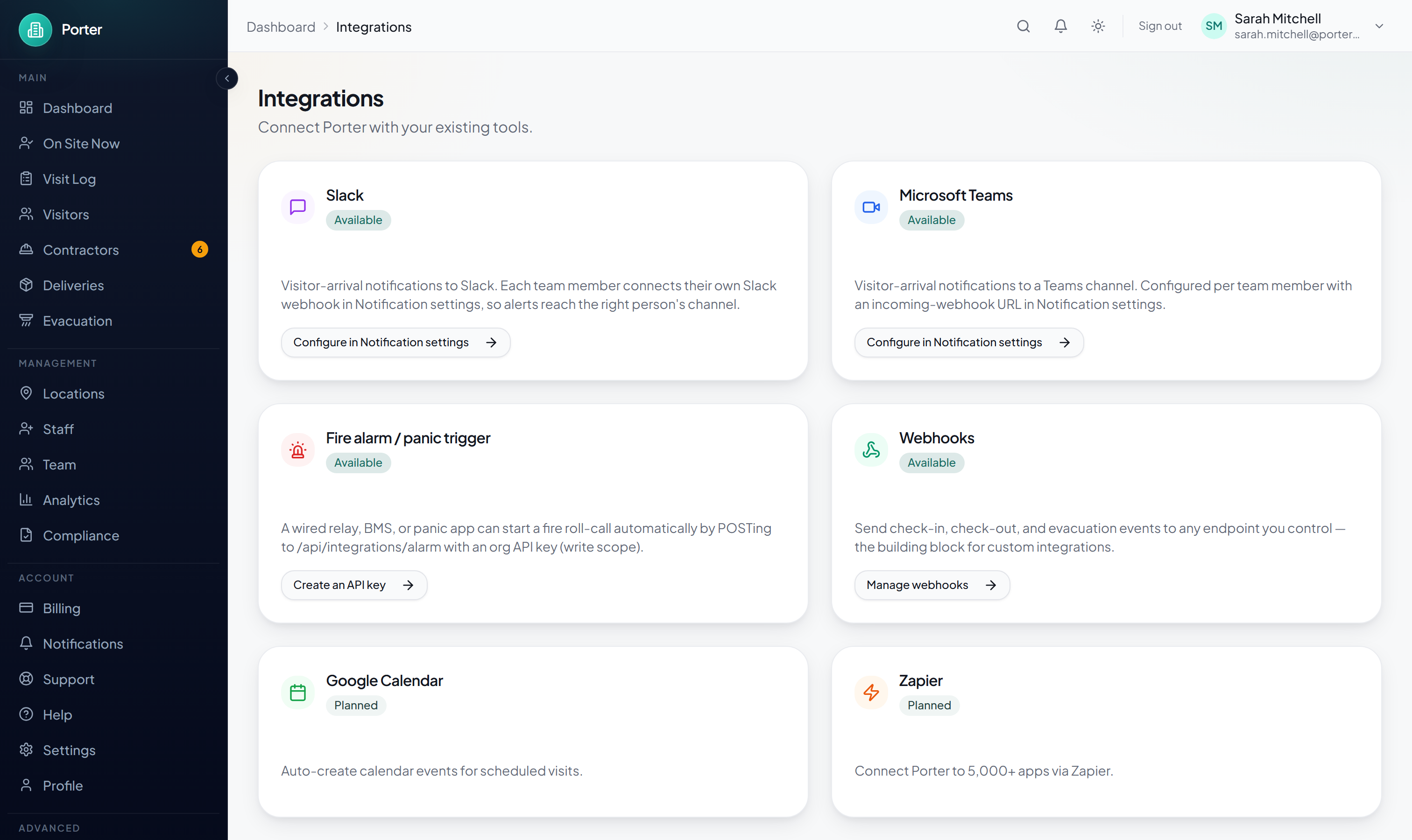
The Slack integration posts visitor-arrival alerts into Slack. It is configured per person: each team member connects their own incoming webhook, so alerts land in the channel or direct message they choose. This is ideal for teams that live in Slack throughout the day.
To connect Slack:
- In Slack, create an Incoming Webhook (Apps, then Incoming Webhooks) for the channel where you want alerts to appear.
- Copy the generated webhook URL. It starts with https://hooks.slack.com/services/.
- In Porter, open Notification preferences, toggle Slack on, paste the webhook URL, and save.
Each arrival appears as a message card titled "Visitor Arrived" with the visitor's name, company, location, and check-in time, the purpose or notes if provided, the visitor's photo if available, and a "View in Dashboard" button. When a location requires approval, Porter also posts the approval request, with Approve and Deny links, to your Slack. Porter only accepts hooks.slack.com webhook URLs.
Microsoft Teams Integration
For organisations on Microsoft Teams, Porter delivers arrival alerts as an adaptive card in a Teams channel. Like Slack, Teams is configured per person with an incoming-webhook URL.
To connect Teams:
- In Teams, open the channel where you want alerts, click the more-options menu, then Connectors, then add and configure an Incoming Webhook.
- Copy the generated webhook URL.
- In Porter, open Notification preferences, toggle Microsoft Teams on, paste the webhook URL, and save.
The Teams card is titled "Visitor Arrived" and shows the visitor's name, company, location, and check-in time, the purpose or notes if provided, the photo if available, and a "View in Dashboard" action. Approval requests are mirrored to Teams in the same way as Slack. Porter accepts Teams webhook URLs on the standard Microsoft webhook hosts.
Choosing Your Channels
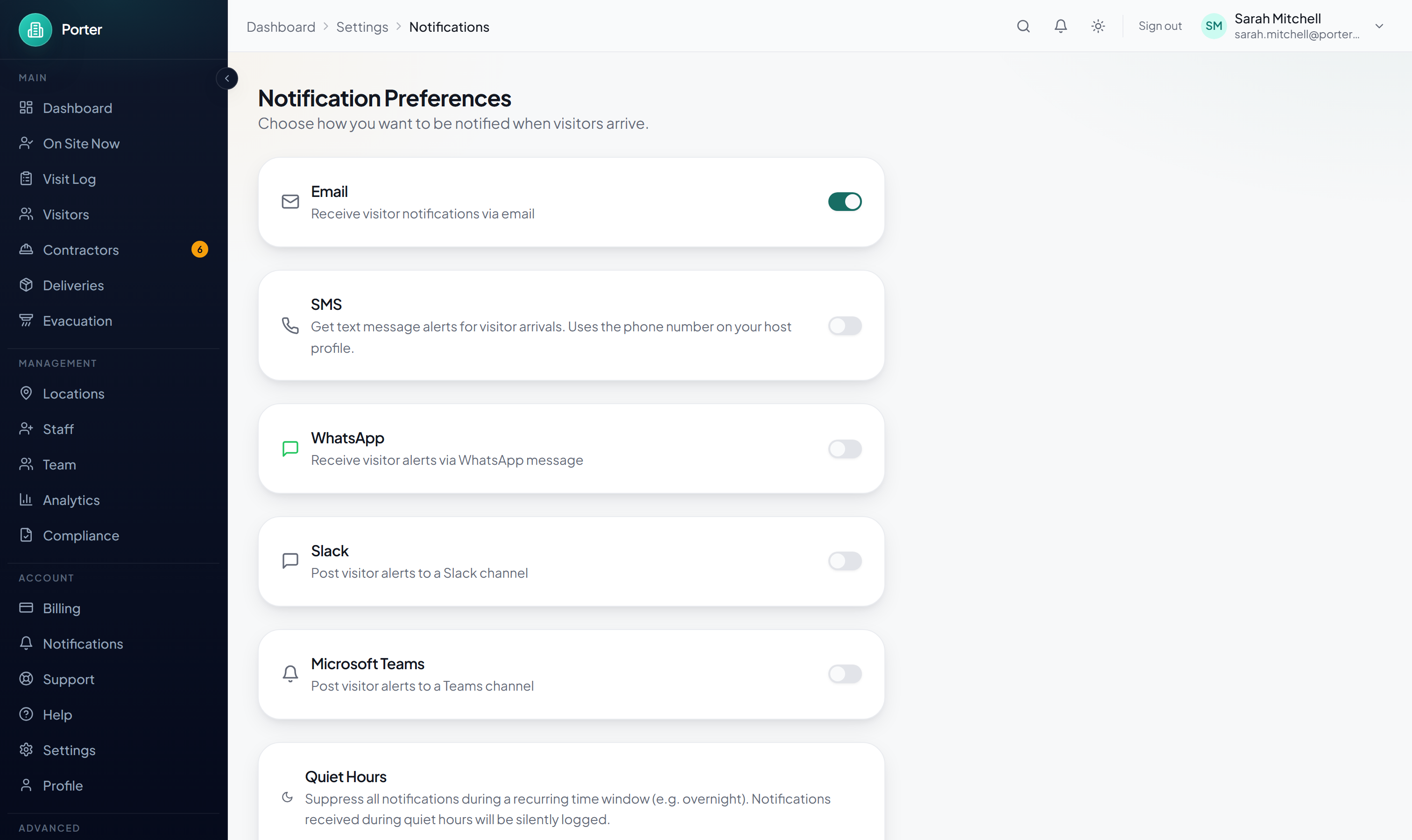
Notifications are per person. Each team member decides which channels they receive, so a colleague who lives in Slack and a colleague who prefers email can each get alerts their own way. There is no single organisation-wide switch that forces everyone onto the same channel.
Manage your channels from Notification preferences, reachable under Settings then Notifications, or from the Notification Preferences card on your Profile. Toggle each channel on or off independently and save. Email, Slack, and Microsoft Teams are always available. SMS and WhatsApp appear only when your deployment has Twilio configured.
Quiet Hours
Quiet hours let you mute your own notifications during a recurring window, such as overnight. Set a start and end time (24-hour format) in Notification preferences. The window is evaluated in your organisation's timezone. If the end time is earlier than the start time, the window spans midnight (for example 22:00 to 07:00). Leave both fields empty to switch quiet hours off.
Quiet hours do not simply drop an arrival on the floor. When a visitor arrives for a host who is currently in quiet hours, Porter looks for a backup: the least-busy active host at the same location. If it finds one, it routes the alert to that backup host so the visitor is still met. If no backup is available, Porter notifies the original host anyway, so a genuine arrival is never missed.
Notification Log
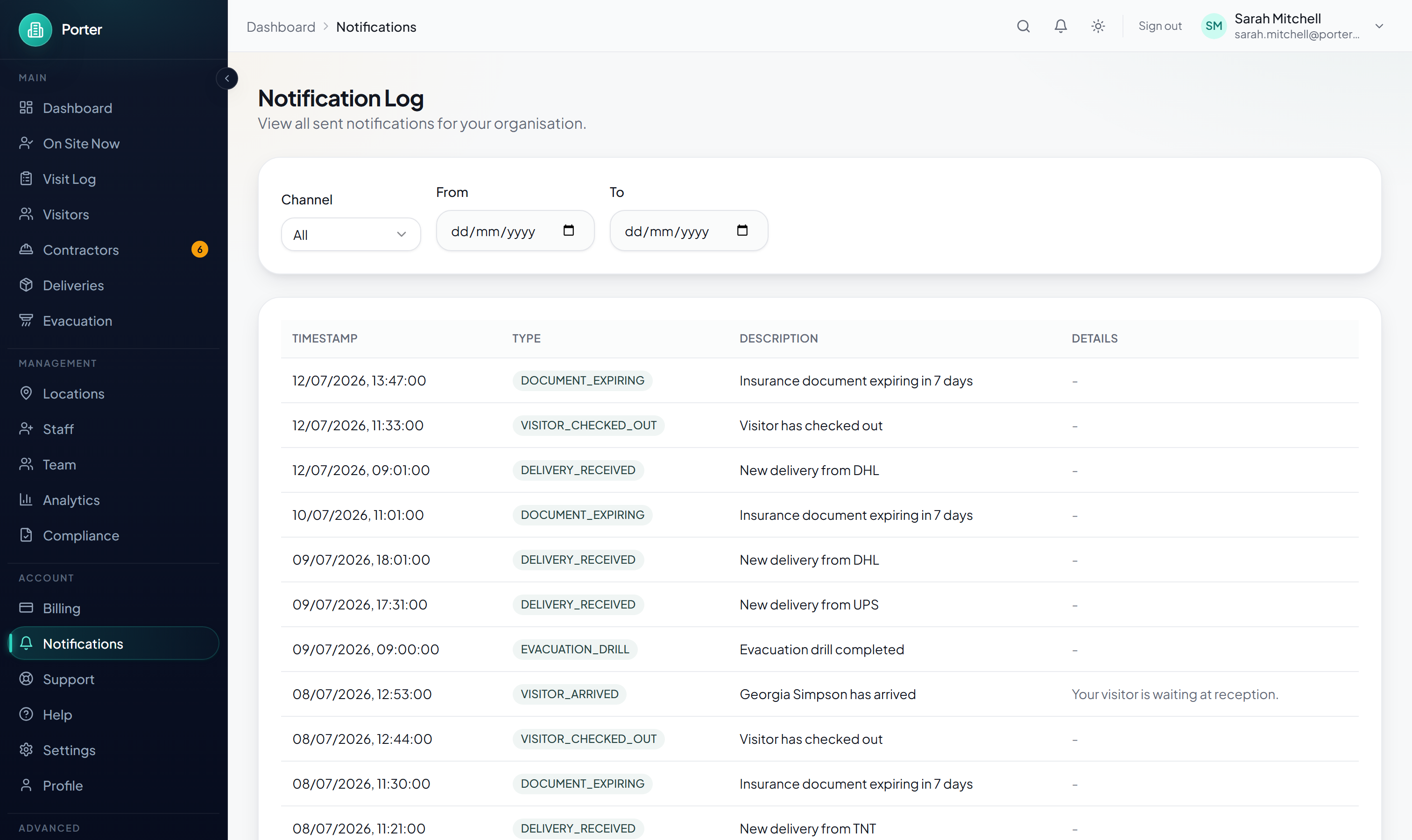
Porter keeps an organisation-wide log of the alerts it sends, which is useful for confirming that a notification went out or for troubleshooting a missed arrival.
Open the Notification Log from the dashboard. You can filter by channel (Email, SMS, Slack, or Teams) and by date range. Each row shows the timestamp, the type, a short description, and further details.