Setting Up Your Visitor Kiosk
Last updated July 2026
The kiosk is the check-in screen visitors use when they arrive. It runs in any modern browser at a URL that is unique to each location, so most sites load it on a tablet at reception and leave it running. This guide covers finding the link, pairing a device, choosing hardware, locking the tablet down, and configuring the check-in flow.
How visitors use the kiosk
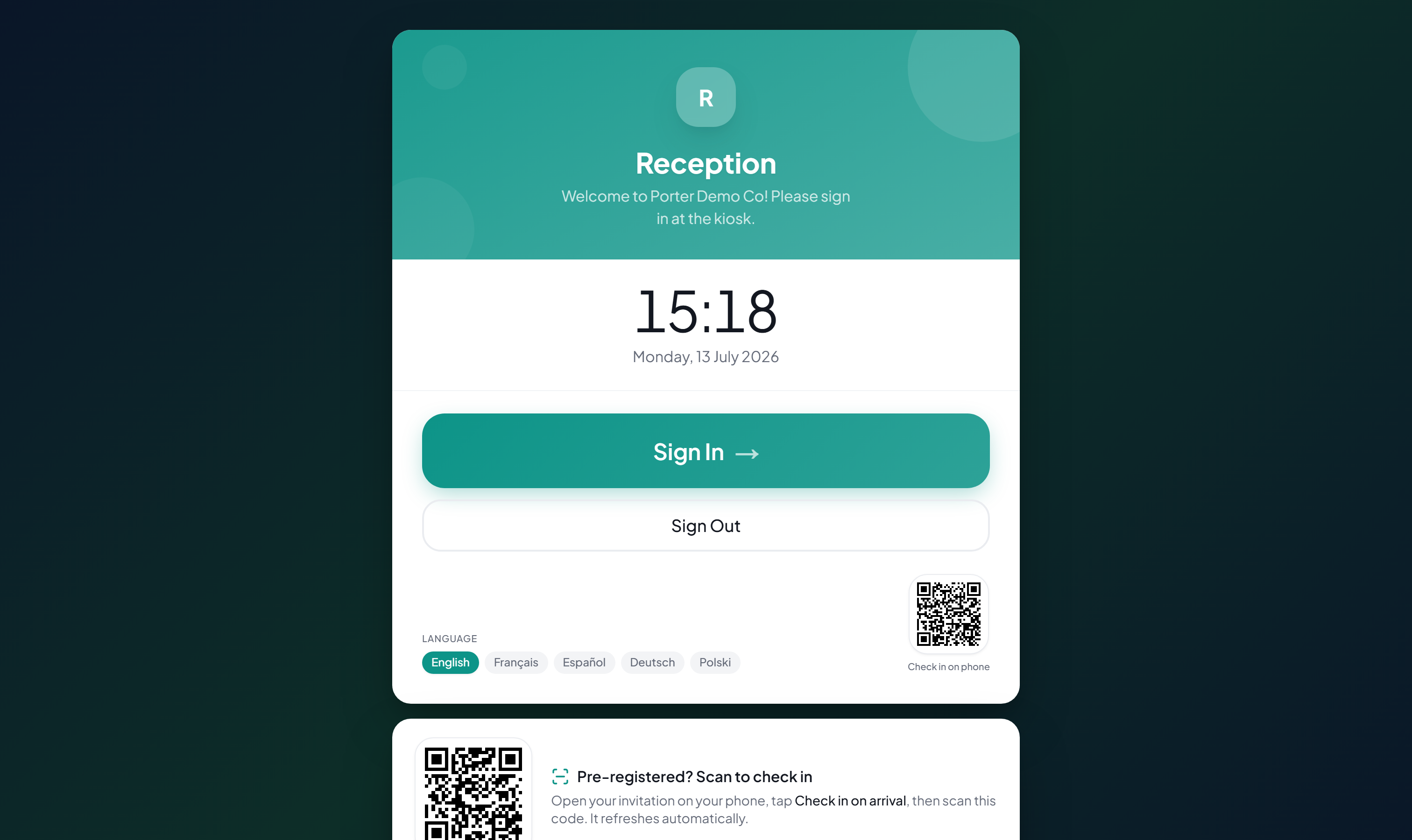
The welcome screen shows the current time and date, a large Sign In button, and a Sign Out button for visitors leaving. A language selector offers English, Français, Español, Deutsch, and Polski, and the screen re-renders in the chosen language.
A "Check in on phone" QR code lets visitors check in on their own device instead of the shared tablet. When self check-in is enabled, a "Pre-registered? Scan to check in" panel also appears for expected visitors. After a period of inactivity the kiosk clears any half-finished check-in and returns to this welcome screen automatically.
Finding your kiosk link
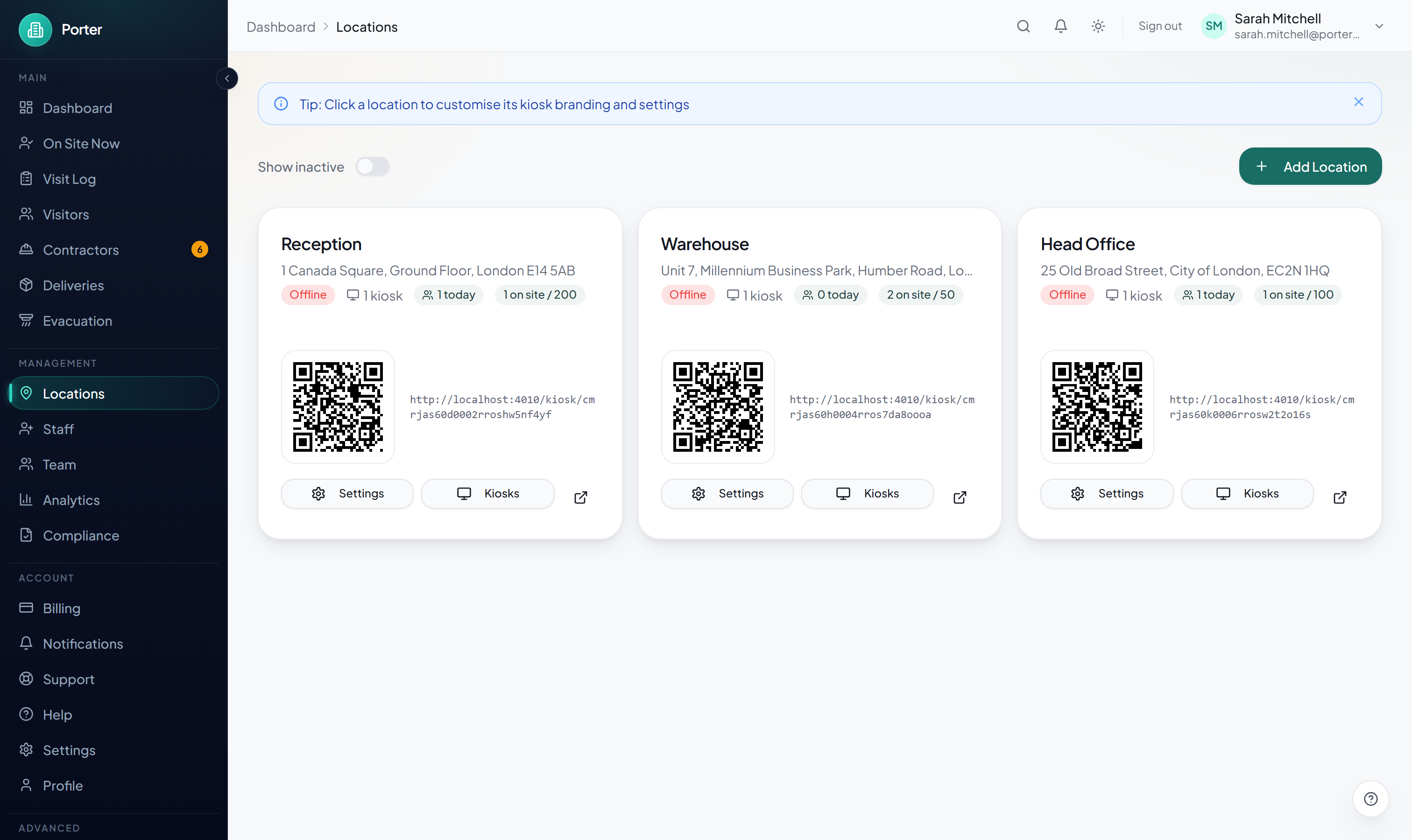
Every location has its own kiosk URL in the format /kiosk/[locationId], generated automatically when the location is created. Go to Locations in the dashboard and each location card shows a QR code alongside the full kiosk URL. Open the kiosk in a new tab with the open icon, or copy the link to hand to your reception or IT team.
Pairing a device
A device has to be paired before it will run the kiosk. Loading the bare kiosk URL on an unpaired tablet shows "This device isn't paired" and prompts you to launch it from the dashboard instead. Pairing is a one-time step per device:
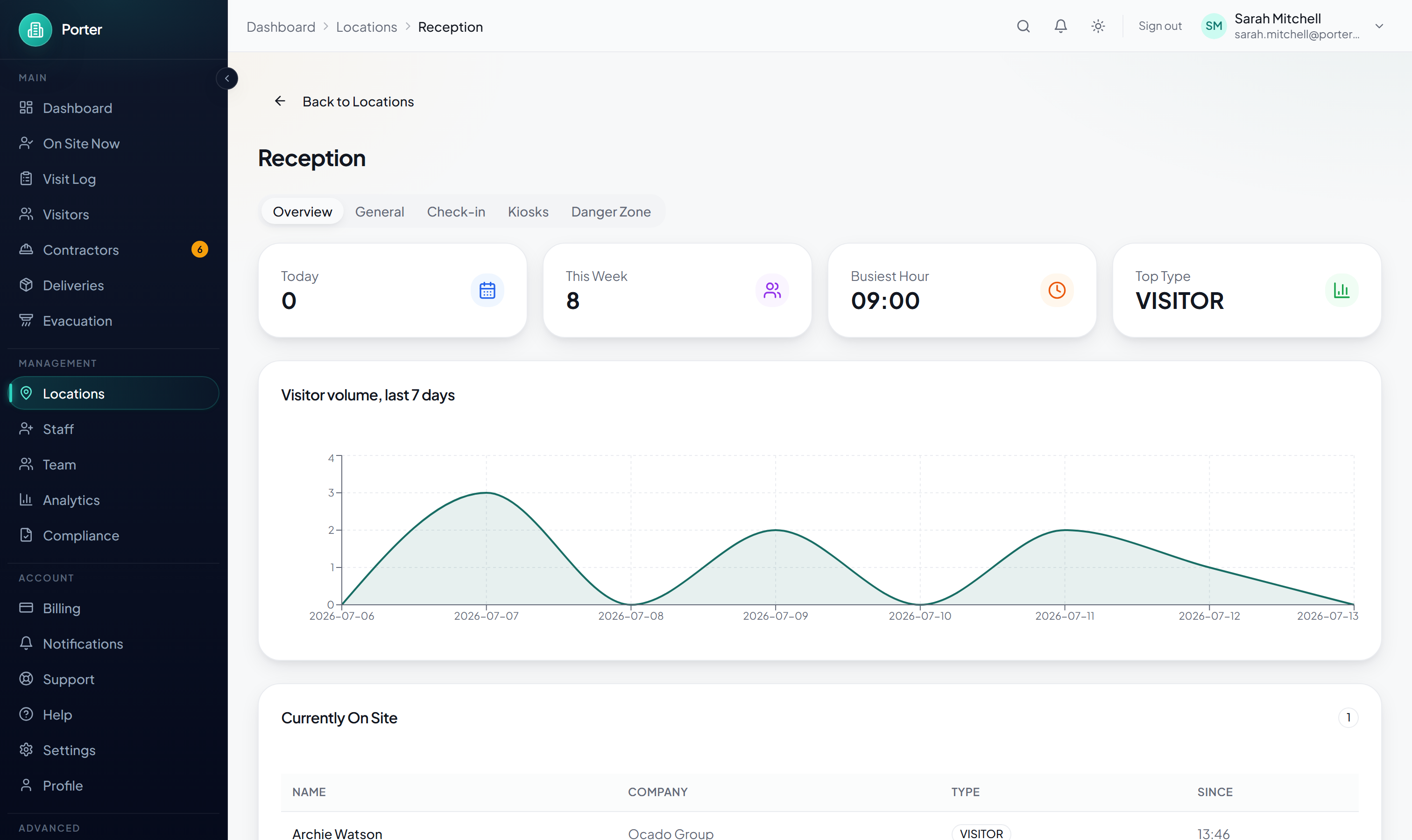
- Open the location, then the Kiosks tab (or the full kiosk manager linked from it).
- Click Launch Kiosk (or Add Kiosk) to mint a one-time pairing token.
- Porter opens a Launch Kiosk dialog with an authentication token, a pairing URL of the form
/kiosk/[locationId]?k=[token], and a QR code. - On the tablet, open that pairing URL or scan the QR once to pair it. To use the computer you are on, click Open on this device.
- The device now stays paired and appears in the Kiosks list as Online, with a last-seen time.
The token is shown only once. If it is lost, use Regenerate Token to issue a new one, which immediately stops the old token from working. Deactivate a kiosk to stop it accepting check-ins.
Recommended devices
Porter works on any device with a modern browser, but a reception tablet with a front-facing camera and a single-app lock gives the best experience.
- iPad (9th generation or later) with Safari, which supports Apple's Guided Access lock.
- Android tablet (10-inch or larger) with Chrome, which supports Screen Pinning; many vendors also ship a dedicated kiosk mode for fleets.
- A desktop or laptop browser (Chrome, Edge, Firefox, or Safari) works well for a staffed reception desk.
- A front-facing camera is needed only if you require visitor photos.
Locking the device
Porter does not lock the tablet itself; use your device's operating-system single-app mode so visitors cannot leave the check-in screen or reach other apps.
- iPad: enable Guided Access under Settings > Accessibility > Guided Access, then triple-click the side or home button on the kiosk to start a locked session.
- Android: use Screen Pinning (under Settings > Security), or your manufacturer's dedicated kiosk mode when managing several devices.
As a backstop, the kiosk resets to the welcome screen after a configurable idle timeout, so an abandoned check-in clears itself rather than exposing a previous visitor's details.
Configuring the check-in flow
Open a location to reach its tabs. The Check-in tab controls what visitors must complete, and the Kiosks tab controls per-device behaviour.
On the Check-in tab you can set:
- Photo Required — visitors take a photo during check-in.
- NDA Required — visitors sign before finishing. The NDA text supports basic markdown, and a re-sign cadence (in days) lets returning visitors who signed recently skip the step.
- Host Approval Required — the visitor waits at the kiosk until their host or the dashboard approves entry.
- Maximum Capacity — block new check-ins once this many visitors are on site.
- Custom Fields — extra questions, each a text box, dropdown, or checkbox, marked optional or required.
On the Kiosks tab, editing a kiosk exposes per-device options:
- Idle timeout in seconds before the screen resets.
- Photo capture and signature capture toggles.
- Which visitor types appear on that device.
Returning visitors are recognised by email: when someone who has checked in before enters their email, Porter pre-fills their name, company, and last host, and greets them by name.
Branding the kiosk
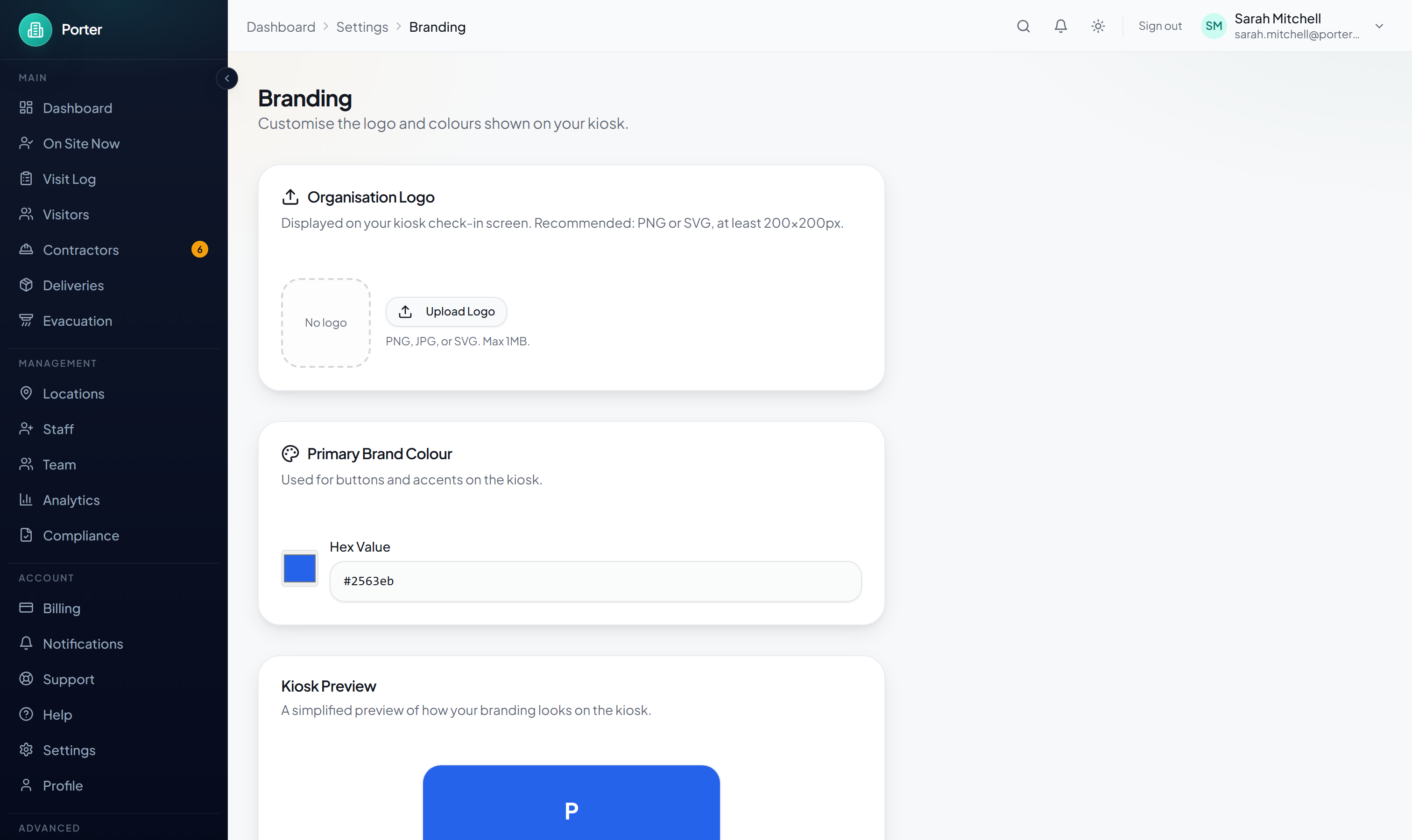
Branding is set once for the whole organisation under Settings > Branding and applies to all your kiosks. Upload a logo (PNG, JPG, or SVG, up to 1MB, at least 200×200px) and choose a single primary brand colour using the colour picker or a hex value. The colour is used for buttons and accents on the kiosk, and a live Kiosk Preview shows the result as you edit.
The welcome message that greets visitors is set per location on the location's General tab, so different sites can show different wording under the same logo and colour.
Pre-registration and phone check-in
Pre-registered visitors receive an emailed invitation. On arrival they can open it on their phone and follow it to check in, with their details already on file so most fields are skipped.
When self check-in is enabled, the welcome screen shows a rotating "Pre-registered? Scan to check in" QR code. The visitor opens their invitation, taps "Check in on arrival", and scans the kiosk's QR with their phone. The phone does the scanning; the kiosk then takes over the screen with a welcome, or, for a contractor with missing or expired documents, a reminder or a block with the reason.
Whichever route a visitor uses, the required steps still apply: if the location requires a photo or an NDA, a pre-registered visitor is still prompted for them. For walk-ins who prefer their own phone, the welcome screen's "Check in on phone" QR opens the same mobile check-in.