Contractor Management
Last updated July 2026
Porter gives contractors their own check-in flow, tracks the compliance documents they upload, watches those documents for expiry, and lets your team approve or reject a contractor before they are cleared for site. This article covers each of those steps and where to manage them.
How Contractors Check In
Contractors check in through a dedicated flow that collects more than a standard visitor. They can complete it on the kiosk tablet, or on their own phone using the pre-registration QR code they were emailed or the "Check in on phone" QR on the kiosk welcome screen. On a phone, attaching a document lets them photograph it.
- At the kiosk, tap Sign In, then choose Contractor on the visitor type screen.
- Enter details. Email comes first: Porter recognises a returning contractor from it and pre-fills their name, company and phone. New contractors add first and last name, company, and trade (typed in, for example electrician or IT technician), plus an emergency contact name and number. Phone is optional.
- Choose the host they are here to see, if the site asks for one.
- Upload documents. For each item, pick the document type, add an expiry date if it has one, and attach the file. Several documents can be added.
- Take a photo, if the site requires one.
- Finish check-in. If the site requires host approval, the contractor waits at the kiosk until their host, or an admin from the dashboard, approves entry.
- Complete the induction questionnaire, if an active one applies to contractors at that site.
The document and induction checks are enforced on the server, not just in the kiosk screens. At sites that enforce compliance, a contractor with missing, expired or unreviewed required documents is stopped at the door, and a site that requires induction will not admit them until they pass.
Document Upload Requirements
You decide which compliance documents a contractor must provide when you invite them. From Dashboard > Contractors, use Invite Contractor (one named person) or Invite Company (a firm that registers its own workers), then tick the required documents. The choices are Public Liability Insurance, Employers' Liability Insurance, RAMS (Risk Assessment & Method Statement), Method Statement, CSCS Card, and Asbestos Awareness. These required items are the ones checked at the kiosk.
When contractors or admins upload files, they can also attach Right to Work, DBS Check, and Other in addition to the six above. A required document is only satisfied by an uploaded document whose type matches, that is in date, and that an admin has approved. Anything you did not mark as required is optional.
- Set required documents in the Invite Contractor or Invite Company dialog
- Accepted formats: PDF, JPEG and PNG, up to 10MB per file
- For a multi-page document, combine the pages into one PDF or add each as a separate document
- Uploaded documents are stored on the contractor and reused on future visits, so there is no need to re-upload every visit unless a document expires or is rejected
- Admins view and download every document from the contractor's profile (open a contractor, then the Documents card)
Document Expiry Tracking
Many contractor documents lapse, so Porter tracks expiry dates and flags them before they run out. An expiry date is entered on each document when it is uploaded, at the kiosk or on the contractor's profile. Leave it blank for documents that do not expire.
A daily check keeps document status current and warns your team. It flips lapsed documents to Expired, flags anything due within 7 days as Expiring Soon, and emails your organisation's admins and owners a summary of everything expiring within 30 days.
- Reminder emails go out as a document crosses 30, 14, 7 and 1 days to expiry, at most one summary per day
- Reminders are sent to your admins and owners, so your team can chase the contractor
- Status colours are consistent across Porter: green Valid, amber Expiring Soon (within 30 days), red Expired, plus red Rejected and amber Pending Review
- At sites that enforce compliance, a contractor whose required document has expired is stopped at the kiosk until an in-date replacement is uploaded and approved; warn-only sites let them in and log the shortfall
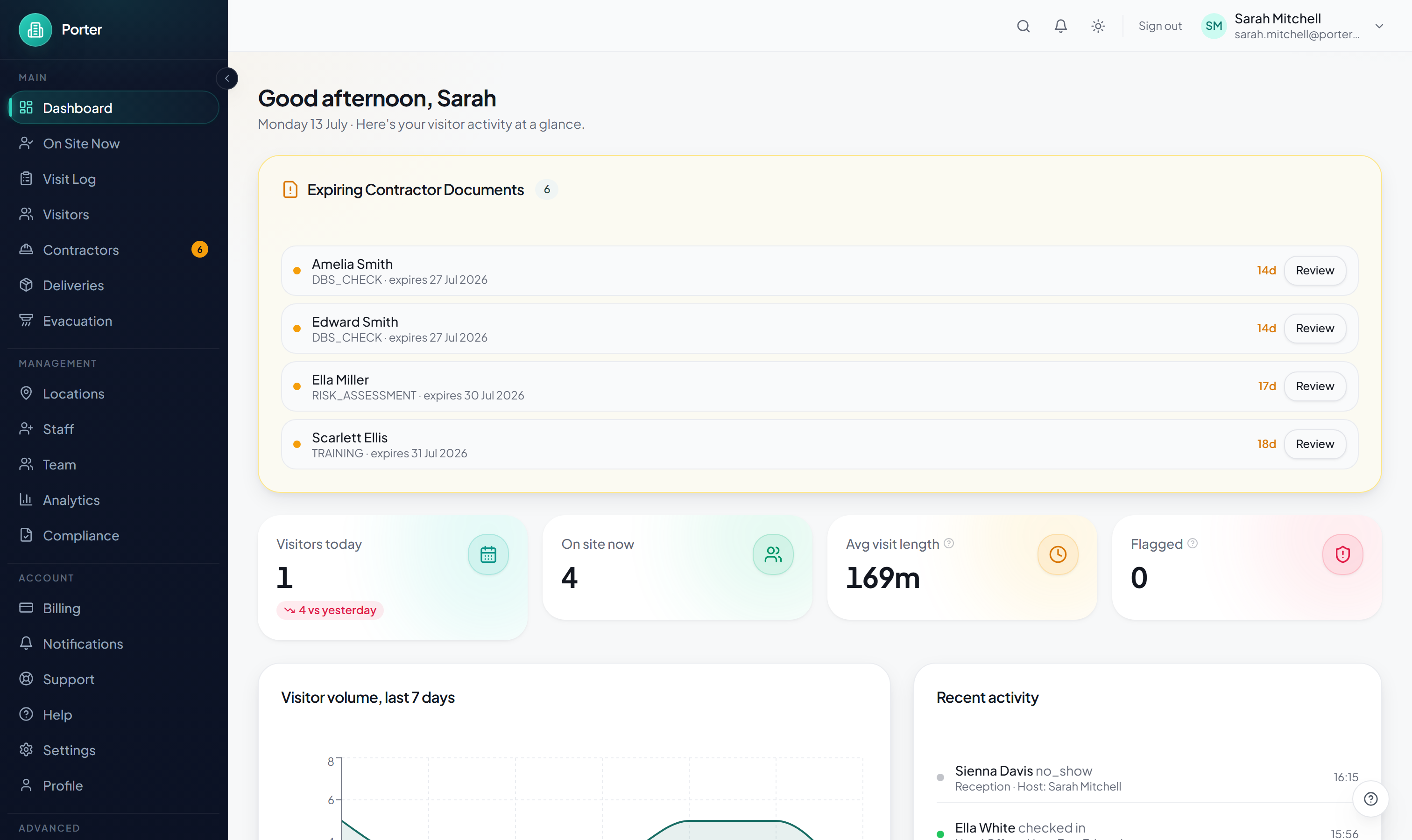
The dashboard home shows an Expiring Contractor Documents panel listing each contractor, the document, its expiry date and days remaining, with a Review link straight to the contractor. Items due within 7 days are marked critical.
Compliance Dashboard
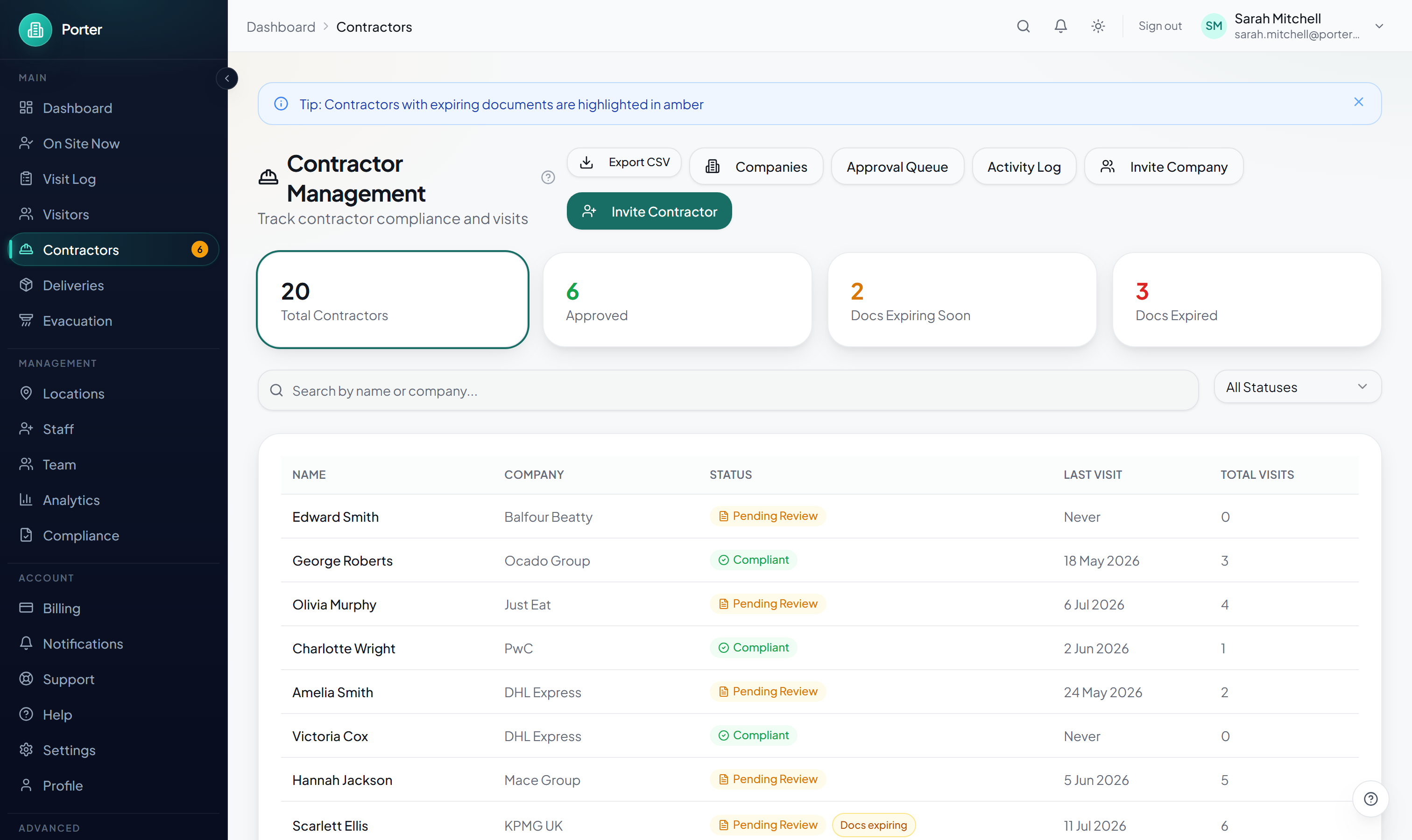
Dashboard > Contractors is the working view of contractor compliance. Four summary cards across the top (Total Contractors, Approved, Docs Expiring Soon, Docs Expired) double as filters: click one to narrow the table to that group.
- Search by name or company, or use the status filter (Compliant, Pending Review, Rejected, Docs Expiring Soon, Docs Expired, No Docs)
- Each row shows the approval status (Compliant, Pending Review or Rejected) plus a document chip (Docs expiring, Docs expired or No docs), the last visit, and total visits
- Click a row to open the contractor's profile
- Export the list as CSV; the header also links to Companies, the Approval Queue, and the Activity Log
For an organisation-wide summary, Dashboard > Reports > Compliance gives an overall compliance score, contractor, document and visit totals, a document-status breakdown, the induction pass rate, and a 90-day compliance timeline. It can be exported as CSV or PDF.
Induction Questionnaires
Induction questionnaires make contractors confirm they understand site rules and safety information before they start, and record that they did. Build them at Dashboard > Settings > Site Inductions.
- Create a questionnaire, give it a name, and optionally scope it to a single location (the default is all locations). Choose which visitor types it applies to; contractors are included by default.
- Add questions in one of three formats: Yes / No, Multiple Choice, or Text. For Yes/No and Multiple Choice you set the correct answer; Text answers are recorded but not graded. Mark each question required or optional, and add an explanation shown when the answer is wrong.
- Set a passing score as a percentage, or leave it blank to require every required question to be answered correctly.
- Toggle Active to control whether the questionnaire is presented at the kiosk.
At check-in the contractor answers the questionnaire on the kiosk. They cannot submit while a required question with a set correct answer is answered incorrectly, and the explanation is shown to guide them. A site that requires induction will not admit a contractor until they pass. Results are recorded against the contractor's visit (shown as Complete with a date in their visit history) and roll up into the Compliance Report's induction pass rate.
Approval Workflow
New and freshly registered contractors start as Pending Review. At sites that enforce compliance they cannot pass the kiosk until an admin approves them. Review them from Dashboard > Contractors > Approval Queue, or open any contractor and use the buttons on their profile. Each pending row links straight to the documents so you can check them first.
- Approve is only allowed when every required document is uploaded, in date, and matches the required type; otherwise Porter refuses and lists what is missing. Approving marks the contractor Compliant, sets their reviewed documents to Valid, and emails the contractor to say they are cleared.
- Reject records a reason, which is emailed to the contractor and stored against their documents. A rejected contractor is refused entry at every site until they are re-approved.
- Request Documents leaves the contractor pending and saves a note describing what is still needed.
Whether a still-pending or non-compliant contractor is actually stopped at the door depends on the site: enforced sites block them at the kiosk, while warn-only sites let them in and log the shortfall for review.
Separately, a site can require host approval for entry (a location's Check-insettings, Host Approval Required). When it is on, a visitor who checks in waits at the kiosk while their host, or an admin from the dashboard, approves or denies entry. The kiosk shows the result and returns to the welcome screen if no one responds within a few minutes. This gate applies to any visitor assigned a host, not only contractors.