Evacuation Mode
Last updated July 2026
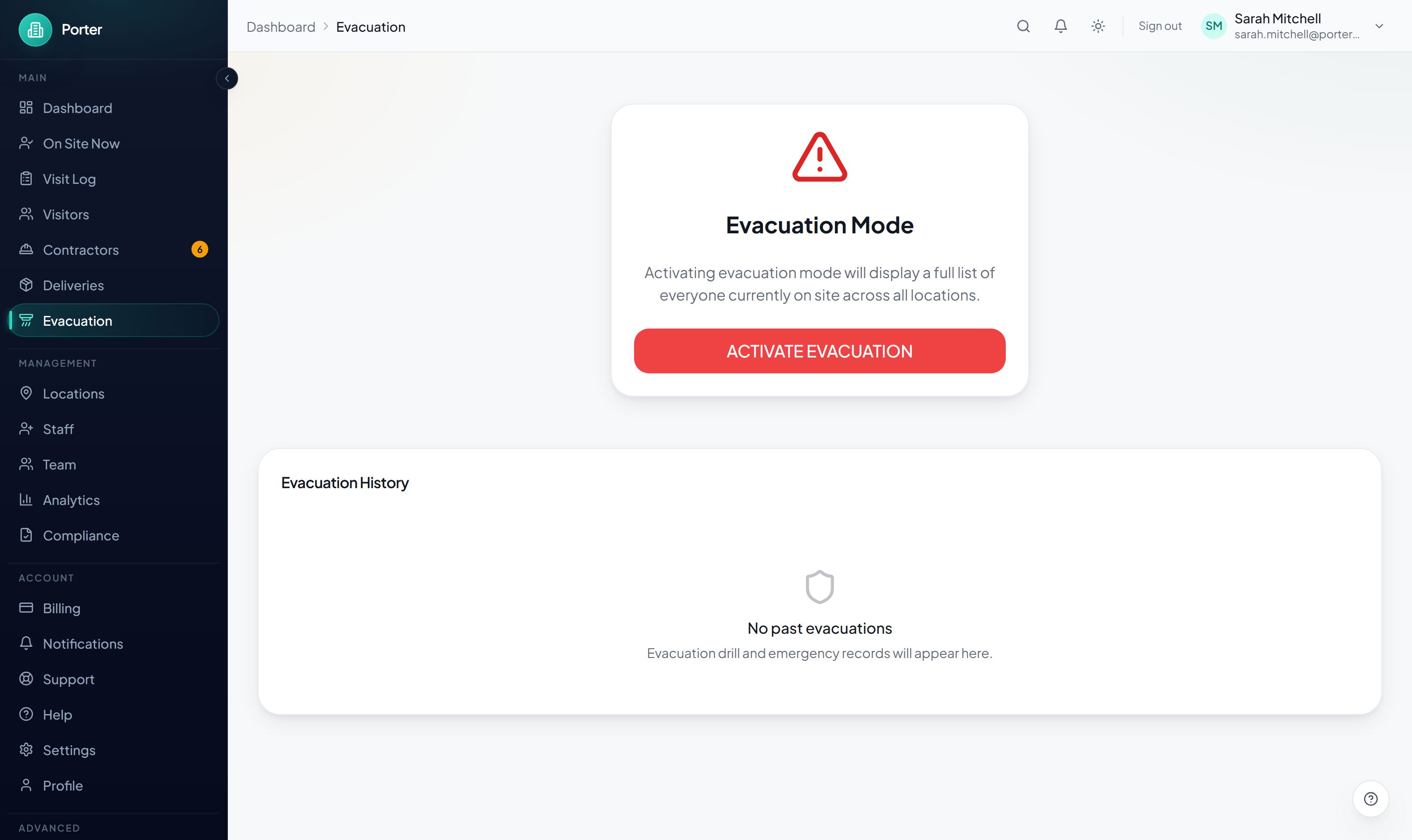
Evacuation Mode gives you a live roll call of everyone on site during an emergency. It lists visitors and, if your organisation uses staff check-in, staff too. You tap each person to mark them accounted for, watch the on-site headcount fall to zero, and optionally text every on-site visitor at once. The list keeps updating every few seconds, so anyone who checks in or out during the incident appears or drops off in real time.
Access is limited to owners, admins, security and reception, because the roll call exposes visitor names and phone numbers. Other roles see a permission notice instead. If you need access during an emergency, ask an owner or admin.
How to Activate Evacuation
Activation is a single action. There is no confirmation step, so the roll call opens the moment you press the button.
- Open Evacuation from the dashboard sidebar.
- Press the red ACTIVATE EVACUATION button.
- The roll call opens immediately, listing everyone currently on site across all your locations.
On activation Porter records the evacuation (with the on-site headcount at that moment) and fires an EVACUATION_STARTED webhook so any connected safety systems can react. The record is what later appears in your Evacuation History.
Starting from a fire alarm
If you connect a fire-alarm relay, building management system, or panic button to Porter's alarm integration, it can start the roll call automatically over the API, so nobody has to open the dashboard mid-incident. The auto-started evacuation behaves exactly like one you start by hand and shows the same live roll call. See API & Webhooks to set this up.
The Roll Call
The roll call shows three headcount counters and a card for every person on site.
- Total On Site, Accounted For, and Unaccounted counters sit across the top and update as you mark people.
- Each person appears as a card with their name, company or visitor type, location, and, for visitors, a tap-to-call phone number.
- The list refreshes automatically every few seconds, so anyone who checks in or out during the evacuation is added or removed live.
- Someone the system auto-checked-out earlier but never confirmed as gone is still listed with a "May be on site" flag, so they are not missed.
Marking People Accounted For
- When you have visually confirmed a person at the assembly point, tap their card. It turns green and a tick appears.
- Tap the card again to undo it if you marked someone by mistake.
- The Accounted For and Unaccounted counters update instantly with every tap.
Your marks are saved as you go, so refreshing the page or handing the device to someone else does not lose progress. If the page reloads while an evacuation is still active, Porter resumes it with your marks intact.
Filtering the Roll Call
- By location: use the location dropdown to narrow the list to a single site if you run more than one.
- By status: tap the Accounted For or Unaccounted counter card to show only those people, or the Total On Site card to show everyone again. This changes only what is displayed, not the counts.
Send an SMS Alert
If SMS is enabled for your organisation, a Send SMS Alert button appears in the roll-call controls. It texts every on-site visitor who has a phone number on file, so people who have not yet reached the assembly point get an instant instruction to evacuate.
- Press Send SMS Alert. If you have filtered to one location, only visitors at that location are texted.
- A confirmation dialog shows how many visitors with phone numbers on file will receive the message. Press Send SMS Alert to confirm.
- Porter sends the default message: "EVACUATION ALERT: Please evacuate the building immediately and proceed to the assembly point."
- When it finishes, a banner reports how many texts were sent and how many failed, out of the total with phone numbers.
The alert only reaches visitors who provided a phone number at check-in, and only when your organisation has SMS messaging configured. If no on-site visitor has a phone number on file, Porter tells you rather than sending an empty blast.
Print or Export the List
Keep a paper copy of the roll call in case devices become unusable during an incident.
Print Roll Call
- Press Print Roll Call to open a printable sheet in a new window and send it to your printer.
- The sheet is headed "EVACUATION ROLL CALL" with the time it was generated and the current progress, for example "12 of 40 accounted for".
- It lists each person by name, company, location and type, with a blank Check column so a marshal can tick people off by hand.
Export List
- Press Export List to download a CSV of the current roll call.
- The file includes each person's name, company, phone, location, type, host, check-in time, whether they are unconfirmed, and whether they have been marked safe.
- The download is named with the current date, for example
evacuation-2026-07-13.csv.
Ending the Evacuation
Once everyone is accounted for and the incident is over, close the evacuation.
Mark All Checked Out (optional)
Use Mark All Checked Out when the evacuation is complete to check out everyone still on the roll call in one action. It clears both visitors and, where staff check-in is used, staff. A confirmation dialog shows how many people will be checked out before it runs. If you have filtered to one location, only that location is cleared.
Deactivate
Press Deactivate in the red header to return to normal operations. Porter closes the evacuation record with its end time and the number of people accounted for, fires an EVACUATION_ENDED webhook, and writes the event to the audit log. The completed record then appears in your Evacuation History.
Drills and History
Run Evacuation Mode during fire drills exactly as you would in a real incident. Each evacuation, whether a drill or the real thing, is saved to the Evacuation History table on the Evacuation page.
- The history table lists the date, location, status, on-site headcount, number accounted for, and duration of each evacuation.
- Select any row to open a read-only summary with the start and end times, duration, and the accounted-for and unaccounted totals.
- Use these records to review how long roll calls take and confirm everyone can be accounted for.
When to Use Evacuation Mode
Activate Evacuation Mode whenever you need an immediate headcount of everyone on site:
- Fire alarm: start the roll call as soon as the alarm sounds.
- Security threat: a lockdown or incident that calls for a headcount.
- Severe weather or other emergency: any situation requiring an accounted-for check.
- Fire drills: practise the roll call so your team knows the process and you have a record of it.