Managing Visitors
Last updated July 2026
Once visitors start checking in, Porter gives you a live picture of who is on site, a full searchable history of every visit, and the tools to check people out and to pre-register expected guests. This guide covers each of those in turn.
Your visitor dashboard
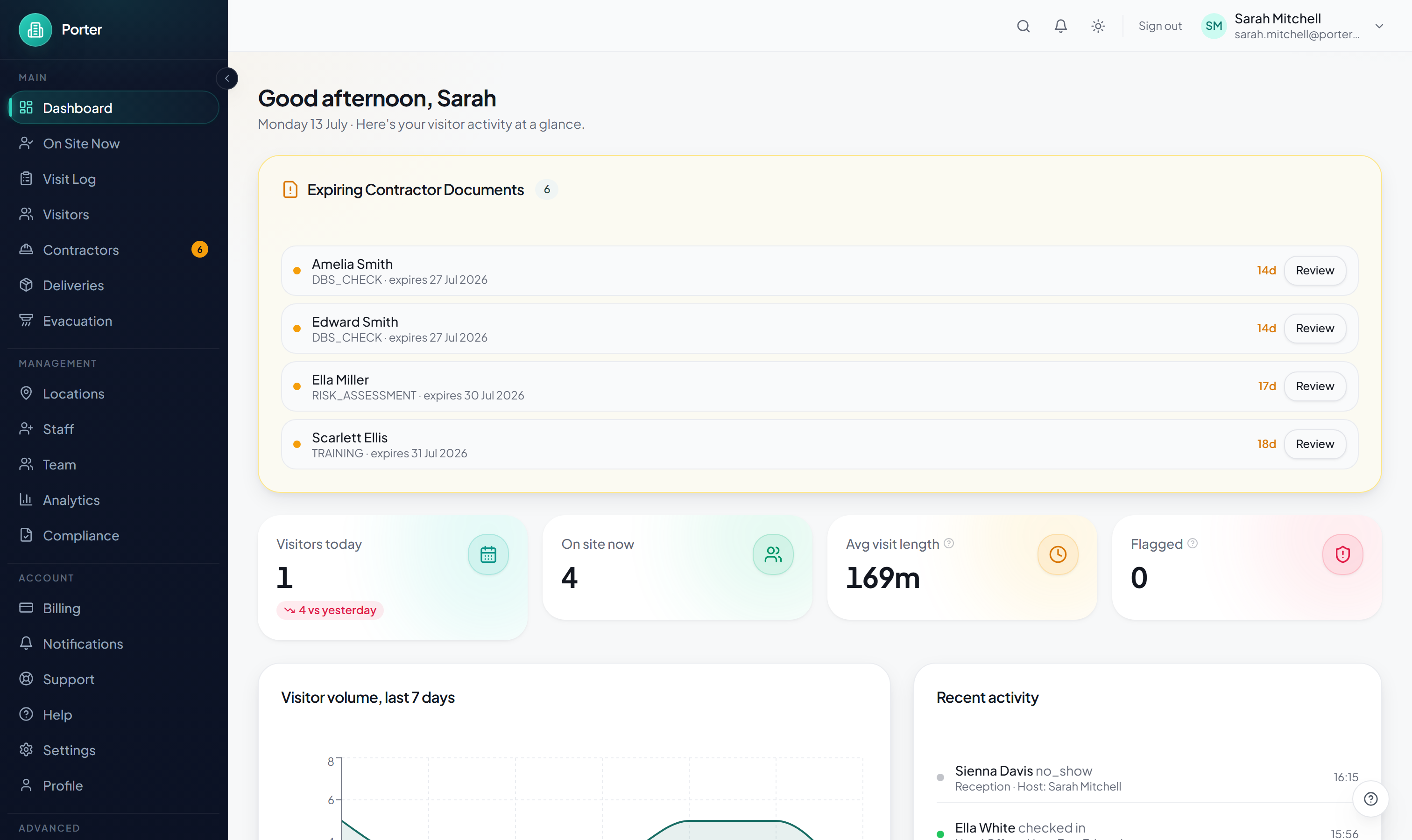
The Dashboard is the first screen you land on after signing in. It gives an at-a-glance read of visitor activity: stat tiles for visitors today, how many are on site now, average visit length, and anything flagged, plus a seven-day visitor-volume chart and a recent-activity feed.
The left sidebar is how you move between the visitor views. On Site Now is the live list of everyone currently checked in, Visit Log is the full history, and Visitors is your directory of people. The sections below walk through each one.
Finding a visitor
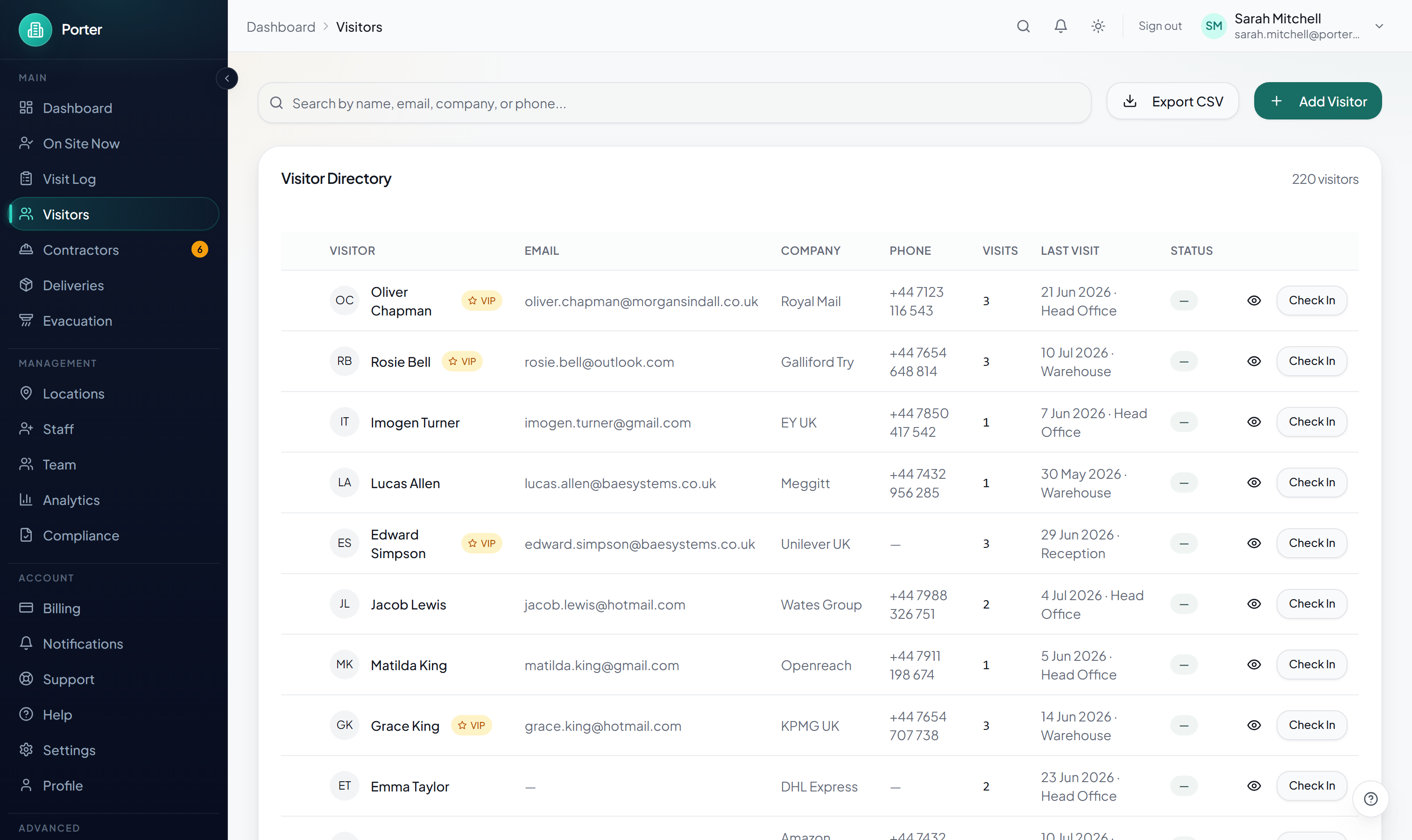
The Visitors page is your directory of everyone who has checked in or been added manually. The search box matches on name, email, company, or phone, and the list filters as you type. Each row shows the person, their company and phone, how many times they have visited, their last visit, and whether they are currently on site. Frequent guests you have marked carry a VIP badge.
Click a visitor's name to open their profile and full visit history. From this page you can also add a visitor manually, start a quick check-in from any row, and export the current list to CSV.
Who is on site right now
On Site Now shows everyone currently checked in across your locations and refreshes on its own about every 15 seconds, so you do not need to reload the page. Summary cards at the top count the total on site and break it down per location. You can filter by location, or search by name, company, email, or host.
Each row shows the visitor's photo, company, host, location, type, check-in time, and a live running duration. A visit that has been open for more than ten hours picks up a "Long visit" badge so it is easy to spot someone who forgot to sign out.
Checking visitors out
Visitors normally sign themselves out at the kiosk, but you often need to check someone out for them: they forgot, they left by another door, or you are closing up for the day.
- One visitor: click the Out button (the door icon) on their row in On Site Now or the Visit Log. They are checked out immediately and drop off the on-site list.
- Several at once: click Bulk Checkout. Choose a specific location first, since bulk checkout is not available for the "All Locations" view. Tick the rows you want, or leave them all unticked to check out everyone at that location, which is what you want for end-of-day or an evacuation.
- A confirmation dialog tells you exactly how many people will be checked out before you commit.
The visit log
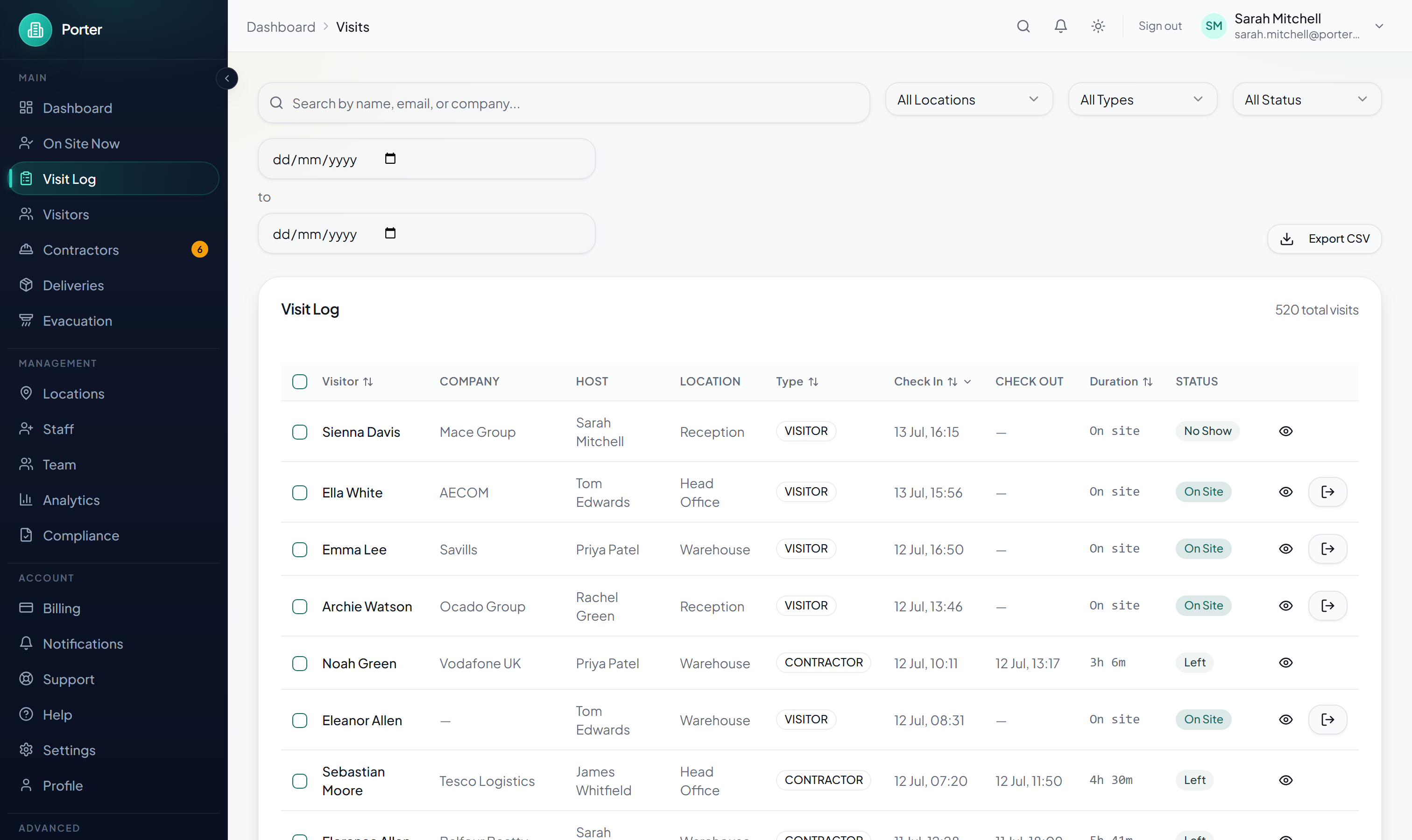
Visit Log is the complete, searchable history of every visit, past and present. The search box matches on visitor name, email, or company. Narrow the list with the Location, Type, and Status dropdowns and a from/to date range. Status covers On Site, Left, Expected (pre-registered), No Show, and Cancelled. Click any column header to sort by name, type, check-in time, or duration.
Export CSV downloads whatever you have filtered, or just the rows you tick. The file includes name, email, company, host, location, type, check-in method, check-in and check-out times, duration, and status, which makes it handy for compliance reporting and fire roll-call records.
Open a single visit with the eye icon to see the full record: the visitor's photo and captured signature, any custom fields collected at check-in, the host and location, check-in and check-out times, and any notes.
Pre-registering visitors
Pre-registration lets you invite a visitor before they arrive so their check-in is faster on the day. It is available on Professional plans and above.
To invite one visitor, open the Invite Visitor page and:
- Choose the Location.
- Enter the visitor's first name, last name, and email. These three are required.
- Set the Expected Date, and optionally an expected time (it defaults to 09:00).
- Optionally add a purpose of visit and pick a host for that location.
- Click Send Invite.
Porter emails the visitor an invitation with the location name and address, the date and time, who is hosting them, a Pre-Register Now link, and a calendar (.ics) attachment. When they open the link they can pre-register and receive a QR code to scan at the kiosk for express check-in. Their visit shows as Expected in the Visit Log until they arrive, at which point it changes to On Site.
Inviting several people at once
For a group visit, click Bulk Invite on the Invite Visitor page, paste email addresses one per line, and send. Everyone you list shares the same date, time, location, host, and purpose from the main form, and each person receives their own individual invitation email.
Managing expected visitors
The Manage Invites page lists your pre-registrations. Filter them by status or by date range, and for any invite that is still pending you can Resend the invitation email or Cancel it if the visit is no longer going ahead.
Visitor types
Every visit is tagged with a type. Porter uses four: Visitor, Contractor, Delivery, and Interview (plus "Other" when you check someone in manually). The type appears in the Visit Log and on-site lists and lets you filter and report by category.
On a self-service kiosk, the visitor picks their type after tapping to sign in. You control which of the four types a given kiosk offers under each location's Check-in and Kiosks settings, so one site can show only Visitor and Contractor while another shows all four. Inductions and agreements can also be required for specific visitor types, so contractors can be asked to complete a safety induction that regular visitors are not.
When you check a visitor in yourself from the Visitors page, you choose the type in the check-in dialog.